Voluntary Suspension (an Example of a Temporary one)
In this section
- Setting Up the Voluntary Suspension in Product Catalog
- Adding the Voluntary Suspension to a Price Specification
- Scheduled Suspension Activation and Deactivation
- Activating and Deactivating Suspensions Instantly via the Service Provider Console
- Activating and Deactivating Suspensions via the Customer Self-Care Portal
Setting Up the Voluntary Suspension in the Product Catalog
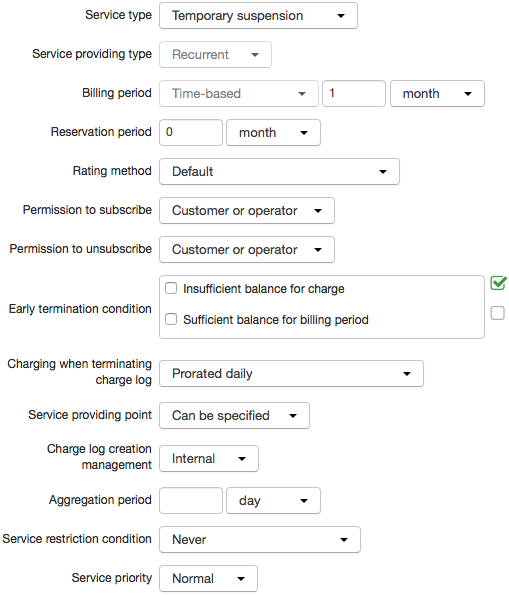
Open the suspension service in the product catalog. In Service providing scheme choose a scheme in which Service type is set to Temporary suspension. You can use a preset scheme, change it or copy it first and enter necessary parameters in a new one.
-
Billing period — by default a charge log is issued per month, so if you need to activate the suspension for a shorter period, you should enter a necessary Charge log end date in the subscription to the suspension service.
-
Permission to subscribe/unsubscribe — one of the most important parameters, it is used to set up different kinds of suspensions: for virus activity (subscribe/unsubscribe by an operator only), voluntary (subscribe/unsubscribe by an operator or a customer), etc.
For a temporary suspension, one activation rule is typically enough.
-
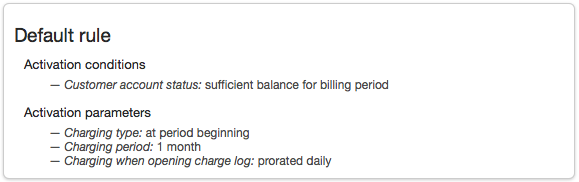
Customer account status — if the service requires a payment, it is provided only on the condition that there are enough funds on the customer account. In the example above, it is available only with sufficient balance for the billing period. When the service is free of charge, it is available unless there are any debts on the account.
-
Activation parameters — the customer is charged at the beginning of each billing period for the whole month, because the charging period equals one month, just like the billing period.
We recommend setting the rest of the values the same as in the example.
Adding the Voluntary Suspension to a Price Specification
Add the suspension service in a price specification. Typically, a suspension service belongs to the same specification as regular services.
Price specifications for one and the same contract can contain several temporary suspension services. For example, one suspension can be activated only by an operator (i.e. in its service providing scheme, Operator only is chosen in Permission to subscribe), while another one can be activated by a customer via the Customer Self-Care Portal (as its Permission to subscribe is By customer or operator).
If specifications contain several temporary suspension services that can be activated by a customer, in the Customer Self-Care Portal only the most expensive one is available for activation. In the Service Provider Console, a suspension service can be chosen when creating a subscription to it.
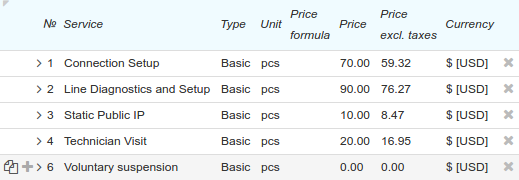
For suspensions, enter a dash in Unit and Rating unit. A voluntary suspension (like any other temporary suspension) may be payable, or free (as in the example, Price = 0).
Scheduled Suspension Activation and Deactivation
In order to activate the suspension in the next billing period, you should add a subscription to the suspension service and click Save. The system will use the current date as Start date. This suspension will be activated as soon as a current charge log for a regular service gets out of force. If you enter Start date different from the current one, the suspension will be activated as soon as a regular service billing period that includes the specified date is over. In both cases, the suspension will be in force until you enter End date in the subscription to it.
If you enter End date in the subscription to the suspension service, the suspension will expire at the end of a billing period that includes this date.
If you need the suspension to be activated and deactivated at a specific time, please follow the steps below.
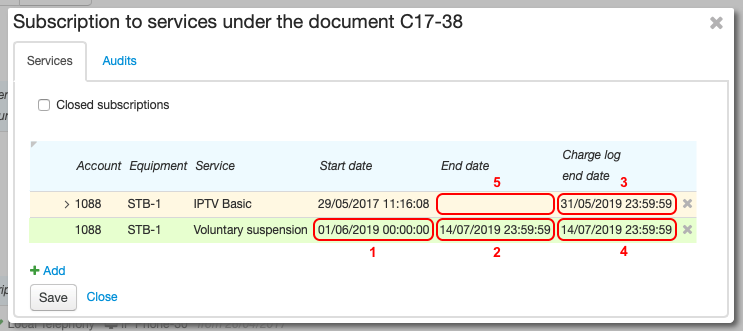
- Open customer's subscriptions and add the Voluntary suspension service.
- Enter Start date (frame #1) — a planned date to activate the suspension.
- Enter End date (frame #2) — a planned date to deactivate the suspension.
- For a regular service (price plan), enter Charge log end date (frame #3) a second earlier than Start date of the suspension. It is necessary if you want the suspension to get in force at a required time. The suspension charge log cannot be issued until the charge log for the regular service gets out of force.
- For the suspension, enter Charge log end date (frame #4) equal to End date of the subscription (frame #2). Then the suspension will expire at the planned time. If Charge log end date for the suspension is not entered, the charge log will be issued for the whole billing period regardless of the subscription End date.
- Leave End date blank for the customer's price plan (frame #5), so that he or she will start using it again when the voluntary suspension expires.
-
Click Save.
-
Thus, the voluntary suspension will be activated on the subscription begin date and deactivated on the subscription end date.
Activating and Deactivating Suspensions Instantly via the Service Provider Console
To activate the temporary suspension instantly, follow the steps below.
-
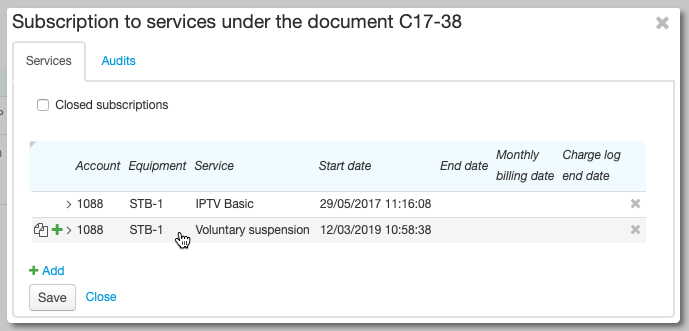
Open the customer's subscriptions, add the suspension service (Start date equals the current date by default). Click Save.
-
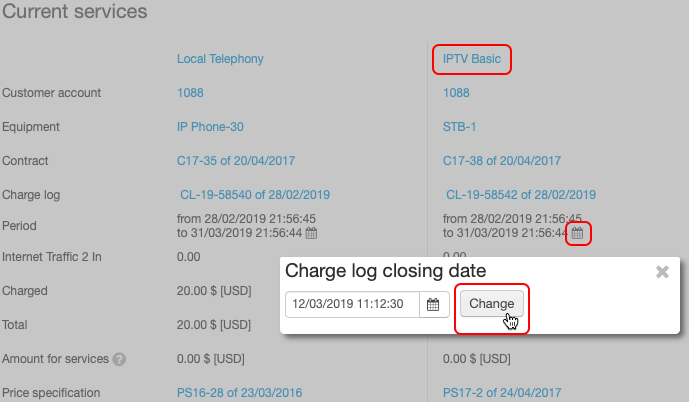
On the Services tab, in the Current services section, close the charge log for the regular price plan by entering the current date.
-
Issue a charge log for the suspension service. The suspension service will appear in the Current services section. The suspended price plan will remain in the Ordered services section.
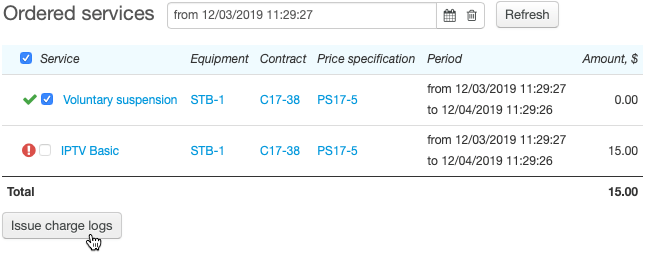
The suspension can be deactivated similarly to its instant activation:
- Open the customer's subscriptions and for the suspension service enter End date equal to the current date.
- On the Services tab, in the Current services section, close the charge log for the suspension service using the current date.
- Issue a charge log for the price plan the customer is subscribed to.
Activating and Deactivating Suspensions via the Customer Self-Care Portal
A customer can suspend a regular service in the Customer Self-Care Portal, if it is provided on equipment and the following conditions are met.
-
The suspension service is added to a price specification in force that is connected to the contract for providing the regular service.
-
In the service providing scheme of the suspension service, Permission to subscribe is set to Customer or operator, and Service providing point — to Equipment or Can be specified.
In this case, there is Suspend next to the regular service.
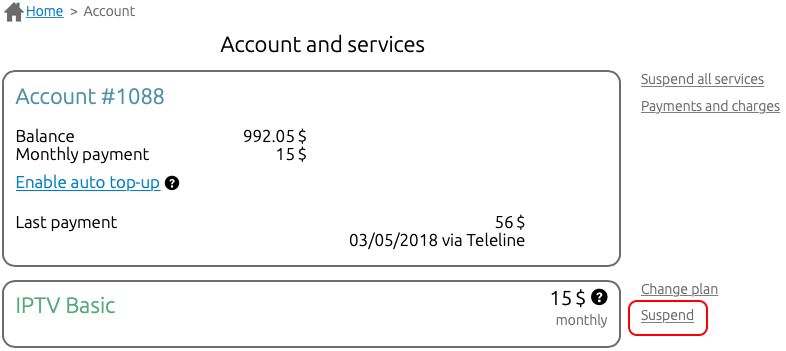
Depending on the settings of the Customer Self-Care Portal, the suspension activates instantly, or as soon as the current billing period of the suspended service is over.
If there are several available suspension services that meet the above conditions, the suspension with the highest price is activated.
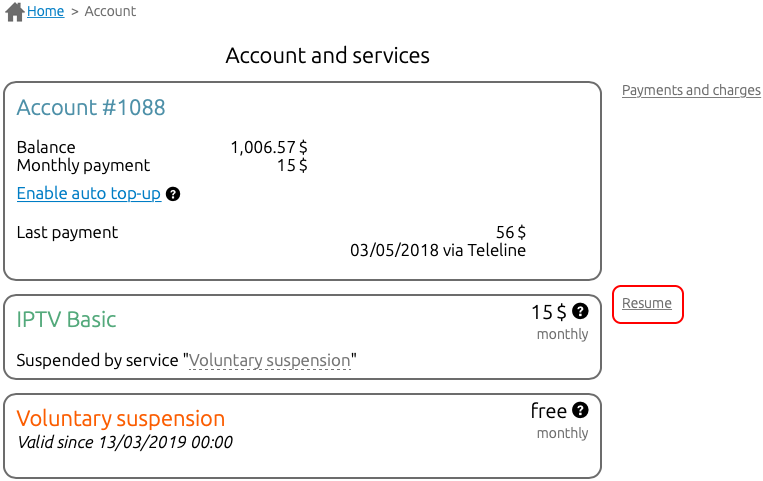
To deactivate the suspension, click Resume next to the price plan. The suspension will be instantly deactivated.