Quick Search
In this section
The quick search box is located in the right corner of the main menu.

Quick Search Features
-
Not case sensitive.
-
Symbols "/", "." "_", and so on are ignored.
-
Allows partial search.
-
Search results are updated as each character is typed, starting from the second.
-
If there is a large number of search results, a partial list is shown. If what you need is not on it, refine your query to narrow search results.
-
If nothing meets your criteria, the message Nothing is found appears.
-
To open an entity’s page, select it from the results list. It opens in a new window if Open in a new window is selected in the quick search settings.
-
If all check boxes in the quick search settings are cleared, the search is carried out as if all of them are selected.
Quick Search Settings
In Quick search settings, that open when you click  , you can choose search scopes:
-
subjects (individuals, organizations, customers, service providers, and banks);
-
customer accounts;
-
documents (contracts, payment orders, specifications, charge logs, invoices, and so on);
-
objects (equipment, components, network services, real estate);
-
subject and object addresses (postal, IP, and MAC addresses, phone numbers, area codes);
-
product catalog;
-
subject, object and document custom fields;
-
comments and notes.
You can also select or clear Open in a new window check box.
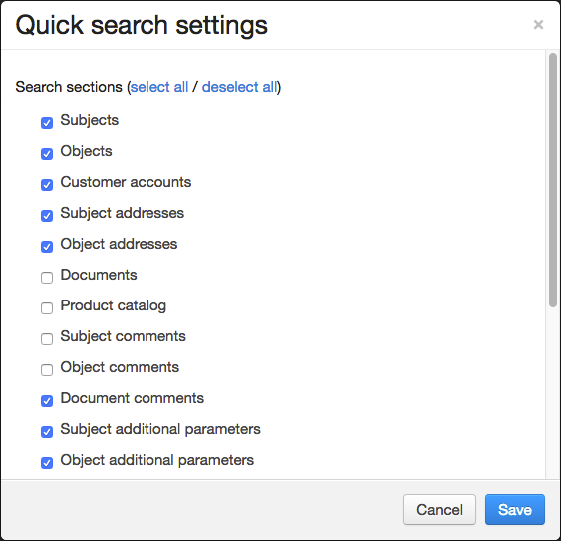
You can switch search scopes both via a settings window, or by using search modifiers (a list of modifiers is given below). If you use a modifier, the system conducts the search regardless of the selected scopes.
The search scopes given in the table for every modifier (except IDs) correspond to the check boxes in the quick search settings.
Search scope |
Modifier |
|---|---|
Object, subject and document IDs |
id |
Subjects, customer accounts, subject addresses, comments on subjects, subject custom fields, subjects by document roles, subjects by equipment address, subjects by network service login |
s |
Documents, comments on documents, subject custom fields, document custom fields, documents by subject role |
d |
Objects, object addresses, comments on objects, object custom fields |
o |
Object addresses, subject addresses |
a |
Product catalog |
g |
Search results are always shown grouped by entities. For example, two scopes were selected in the quick search settings: Subject addresses and Object addresses. Let us suppose that the query 15 is entered in the quick search bar. The search results in this case will be any subjects or objects registered in the system whose addresses contain the number 15 anywhere.
When you hover over a result, a window with a match (or matches) opens to the left of it showing where it was found. In the example (see screenshot) it is the MAC address of a component of the CPE.
In each group, no more than three matches are shown.
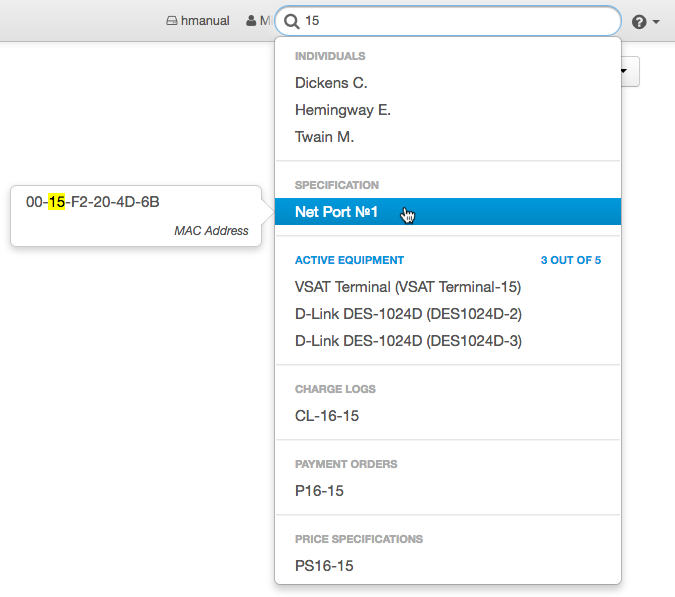
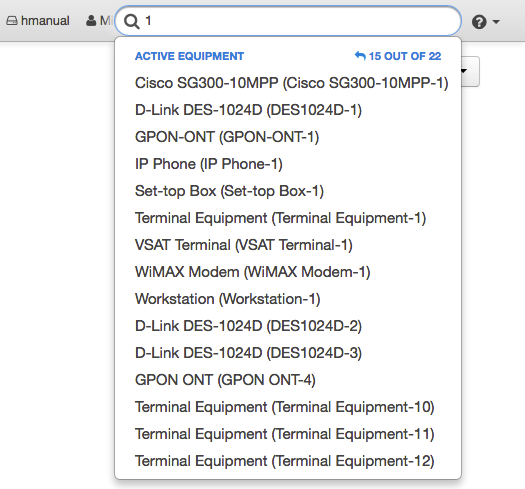
To expand a group containing more than three results, click the link highlighted in blue: group name or total number of matches. Gray indicates a group in which the number of matches found does not exceed three (they all appear in the list). You can return to the general list using the same link.
In the expanded list, only the first fifteen matches are shown. Therefore if there is a large number of results, you should refine your query. This will be a new query which will reset the previous results.
In the following example, the modifier "s" was entered with the same quick search settings and query. Therefore the search results only contain subjects. As shown in the example, a customer byron was found by the address.
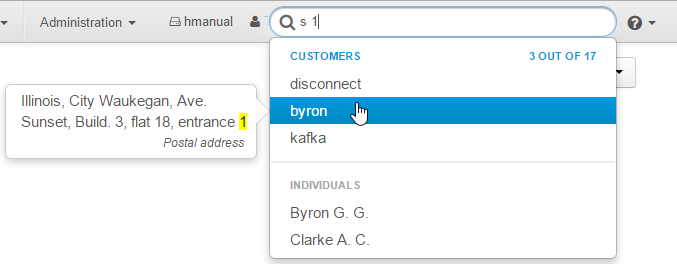
Search results are always shown as a list of entities regardless of the chosen search sections. If the matches were found in addresses, comments, custom fields, and so on, the results would be shown in the form of entities (it could be customers, individuals, active equipment, charge logs, and so on), containing the matches.
Search by IDs
You can find any subject, object or document in the system via quick search by using an entity’s ID. To do this, type the modifier "id" and the ID. Please note that the search doesn't work if only part of the ID is entered. The search scope you choose is not important.
Search Subjects
In the example below, the search scope was Subjects, therefore the search is carried out for matches of short or full subject names (individuals, organizations, customers, service providers, and banks). The search can also be carried out by names or the initials of the subject.
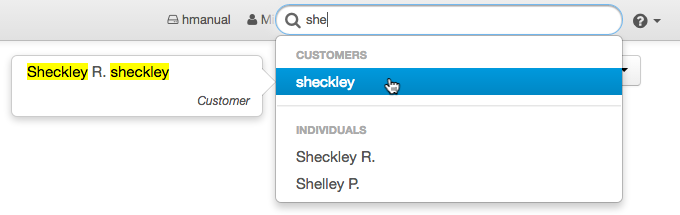
In the screenshot below, the search was also carried out for subjects.

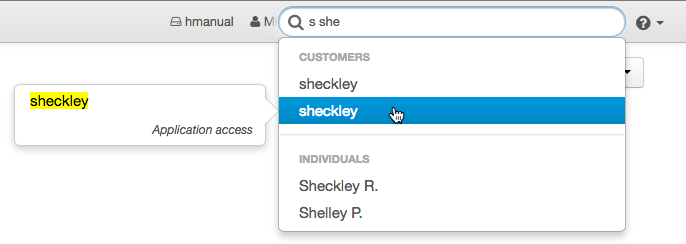
In this example, a search is carried out for the query using a modifier. Matches were found in customer codes and customer logins to network services, since the use of this modifier includes subjects with logins to network services.
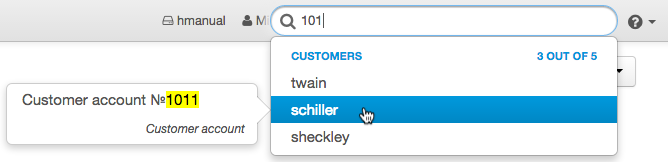
You should use the scope Customer accounts to search for customer accounts to limit the number of results.
Search Documents
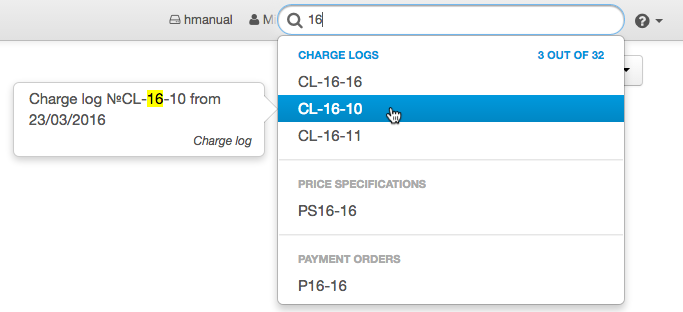
In this case, only one search scope is selected, Documents, and a list of charge logs whose names or codes contain 16 is shown.
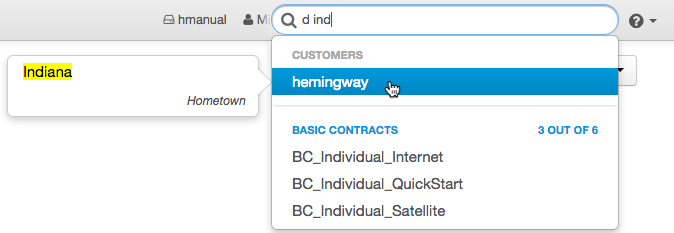
Now the modifier "d" was used. Customers are also included in the search results, since the search is carried out through subject custom fields.
Search Objects
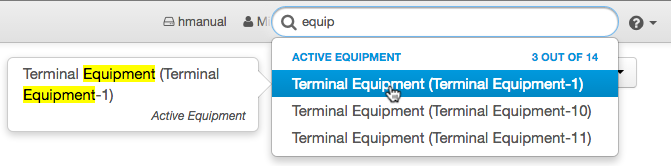
In this example, the query is about objects. The results are active equipment.
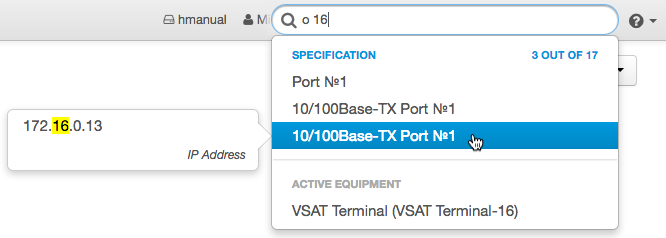
The example below uses the modifier "o". The search results are grouped by entities and include matches in object names and addresses.
Search by Addresses
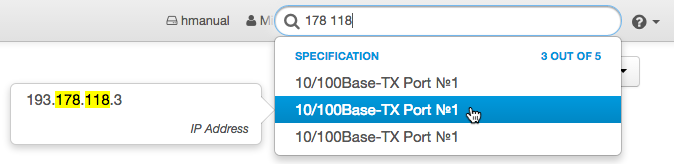
You can search for addresses (street and network) by fragments, using a space to separate them. Below is an example of address search results in all scopes.
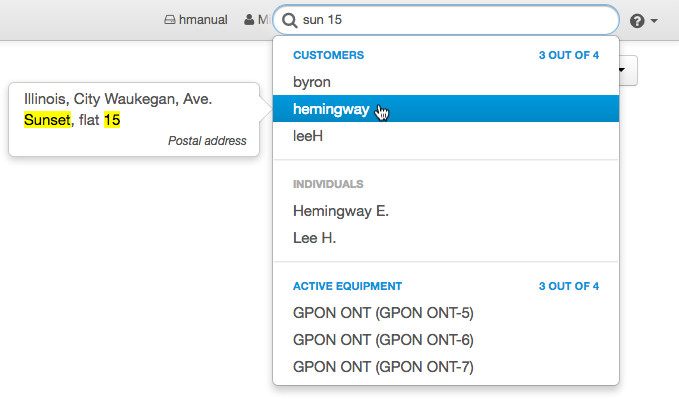
When searching for an IP address, you must be careful to enter the query accurately. For example, to search for an IP address 193.178.118.3, you should not use queries such as: 193 3 or 178 11.
For a phone number, it is sufficient to enter the first or last five digits. In the example below, the modifier "a" was used to refine the search.

Search Product Catalog
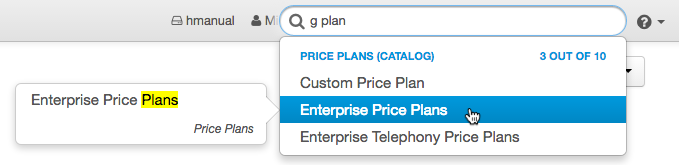
When the Product catalog check box is selected in quick search settings, or the modifier "g" is used, the search results are a list of names of the relevant catalog entries or groups, also grouped by categories.