Adding and Setting Up Criteria
The contents of a report is defined by the set of criteria — parameters, according to which the data is reported and which values are shown in the columns of the report.
Basically, the report is a result of a SELECT statement from the special logical table (view), whereas criteria are columns to be retrieved. Similarly to a regular SELECT statement, various conditions can be applied to criteria (the WHERE clause), they can be grouped (the GROUP BY clause), aggregate functions can be applied (AVG, MIN, MAX, SUM), and additional conditions can restrict the results (the HAVING clause).
Criteria can be chosen in the Criteria table.
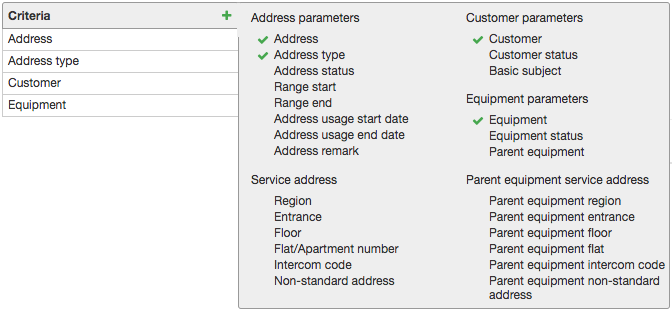
To add a new criterion to a report, click the table header. Depending on the report type, various criteria are available, combined in several groups. Added criteria are marked with  .
.
The rows order in the Criteria table defines the order of columns in a report; you can change it by dragging the table rows. To delete a criterion, click  in the corresponding row.
One and the same criterion can be added multiple times, for example, in case you need to view simultaneously both maximum and minimum payments in the report.
Criteria Settings
Each criterion has a number of settings, which influence the built report. Settings can be opened by clicking a criterion.
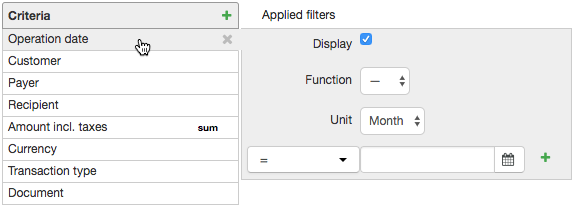
The Display check box is used to include a criterion in the results table. When it is selected, the values of the criterion or the values of the aggregate function applied to the criterion are shown in a separated column of the report. You can clear this check box in criteria that have filters applied to them (see below): in this case, the criteria values are not shown in the report, but the applied filters influence the result of the search. If the filter is not selected, clearing the check box means removing the criterion from the report.
In the settings of the two criteria — Customer group and Basic subject group — the Group check box is used. If it is selected, the data in the report is shown separately for each of the groups. And if a subject belongs to several groups at once, this subject is included in the report multiple times. For example, when defining payments by customer groups, the payments of a customer that belongs to two groups at once are included in the amounts in each of the groups, and in the total amount they are calculated doubly. Whereas, when the Group check box is cleared, for subjects belonging to multiple groups at once, the groups are listed separated by commas in the corresponding column.
Certain criteria (Customer, Document, etc.) have an additional Show list in the settings, with the help of which you can specify which value is to be shown for the criteria — a code or a full name.
The Function list is used to choose the aggregate function. For criteria that have quantitative values (Quantity, Amount, Price, etc.) you can define the average, maximum, minimum, or summed value. For criteria with qualitative values — Customer, Document, Account, etc. — you can define the quantity of the corresponding entities that are included into the report, and the quantity of unique entities in the report (for example, the number of customers that have used services, or made payments).
The Operation date and Quantity criteria have an additional setting — Unit. With the help of it you can change the level of detail of the report. For example, an operation date can be shown accurate to a second (if there is «—» in Unit), or accurate to a day, or a month. Similarly, the amount of the consumed traffic can be shown in bytes, kB, MB, or GB.
You can restrict the rows to be included in the report by applying a filter consisting of one or several conditions to a certain criterion. To enable conditions use equality or inequality signs, as well as defined and not defined, for such cases when you need to determine not the criterion value but whether the value exists or not. Conditions can be combined with the help of logical and or or operators. Thus, in the example below only the payment documents with the amounts of more than $100 and less than $2000 are included in the report.
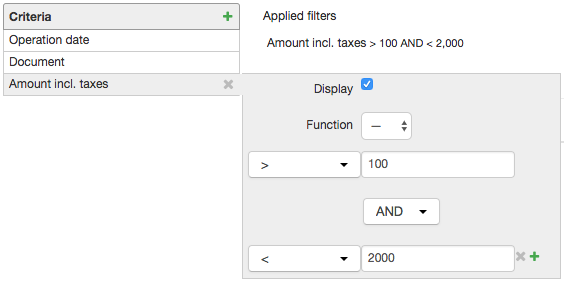
To delete an additional condition click next to it.
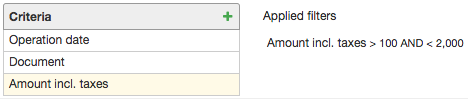
Criteria that have filters applied to them are highlighted with yellow in the table. You can see the filter details next to the Criteria table. If there is any function applied to a criterion, you can see a corresponding sign at the end of the row.