Subscription to Network Services and Access to Applications
In this section
The Network services tab is used to manage customer subscriptions to network services and access to applications.
One customer can have several different logins and passwords to access the same service or application. For example, it is not necessary to create separate customers for all employees who need access to the Service Provider Console. You can have one customer and give each employee his or her own login and password, so all employees will have the same permissions.
Note that on the Audit tab you will see only the customer code, not the login under which the employee logged in to the application.
Subscription to Network Services
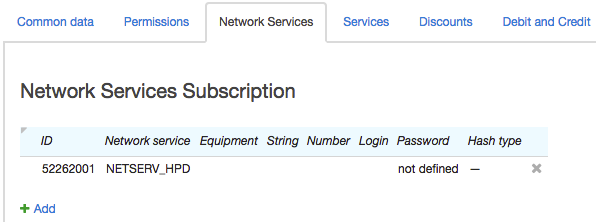
To add a new subscription to a network service, click  Add and in a new row enter the network service from the Registry of network services.
If necessary, you can enter the customer equipment to be used. You can create new equipment using  in the Equipment column.
If your administrator demands, type String and Number.
Enter the Login and Password that the customer will use. Select the Hash type for the password, if needed. If the login is not specified, the customer or equipment code will be used instead, depending on the Default login source of this service.
To change a subscription, click in the row and to delete one, click  .
.
If you have the View passwords for network service subscriptions permission, you see the passwords in the table.
Access to Applications
This section lists the applications that the customer has access to.
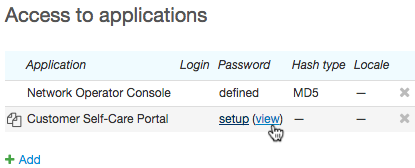
For regular customers, it is only necessary to configure access to the Customer Self-Care Portal. The Service Provider Console is only for customers who are employees and other applications are for ancillary purposes.
To ensure access to a new application, add a row, enter the application, type the customer’s login (if not specified, the customer code can be used) and a password, and enter the hash type.
You can also choose the locale which will be used for that customer in the application interface. If not given, the default locale will apply.
Click the row to edit it. Click to delete and forbid access to the application.
To change passwords for applications, you should have the Change password without entering current password permission.
You can view passwords for the Customer Self-Care Portal if you have the appropriate permission.
Changing Passwords
You can change passwords for a network service or an application in the following ways:
-
in the Customer Self-Care Portal click Passwords in the Settings section. The customer can do this if the Don't allow customer to change password check box is cleared in the service settings;
-
on the Network services tab on the customer page;
-
by printing a customer record—in this case, a random password will be generated.
To print a customer record, click Print in the top right corner of the customer’s page. If there is no such a button, you should add a print template first.
In the Preview changes window in the Changing passwords section, select whether you want to generate a password for network services or applications. You can also select the check box to generate identical passwords for selected applications and network services.
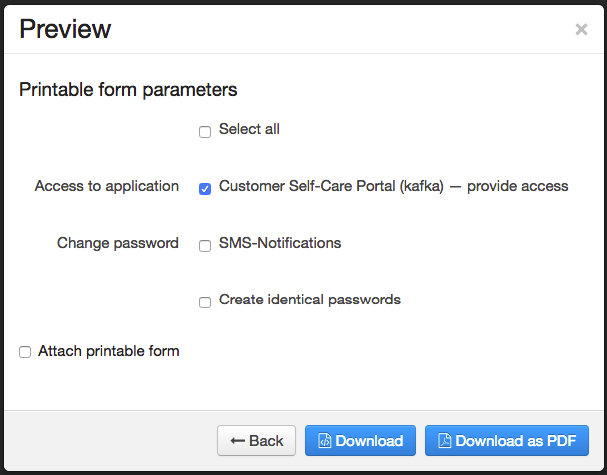
Click Download or Print to see a file containing the generated passwords.