Scheduled Tasks
In this section
Scheduled tasks are special procedures that run on schedule and fulfill various system functions such as rating traffic, issuing and processing charge logs, etc. Open the Administration menu to manage tasks.
Right after launching Hydra Billing in the production mode, make sure to set up tasks monitoring.
Types of tasks are:
-
System — a task that runs for the system in general and is created when installing Hydra Billing,
-
Division — a task that runs within one division (a service provider) and is initialized when installing the system,
-
Object — a task related to a certain object, for example, a traffic collector or network equipment manager, etc., and is automatically created when an object becomes Active,
-
External — a task that is run by some external application, not the billing core, and
-
Custom — a task developed for a certain provider.
Scheduled Tasks
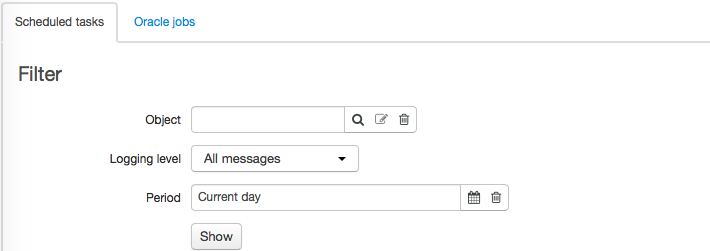
On the Scheduled tasks tab, information on tasks is shown. You can filter tasks by object to view only the tasks that were created for it. You can also choose a type of messages from task logs to be shown and for what period.
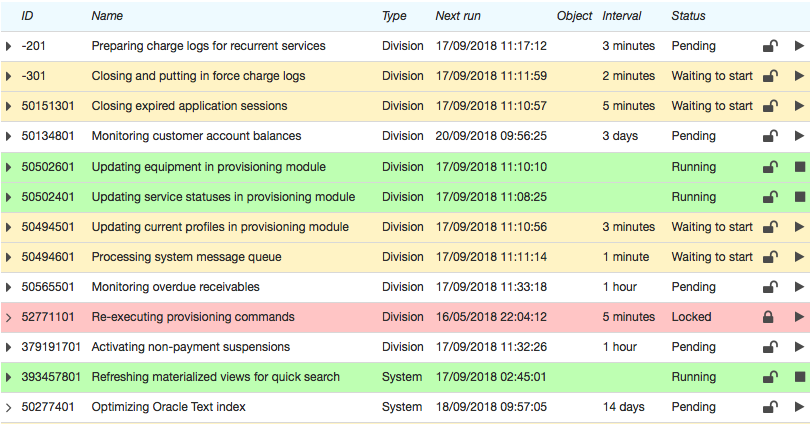
A color of a row depends on a task status:
-
a white row stands for Pending,
-
a green row — for the Running status (is in progress at the moment),
-
a yellow row — for the Waiting to start status which means that the task will start with the next run of an Oracle job,
-
a red row — for the Locked, Failed to start and Failed statuses. A task has the Failed status if any error occurred during its execution. The Failed to start status is applied in case a task remained in the Waiting to start status for more than 15 minutes and never ran (for example, Oracle jobs were not initialized, or the
JOB_QUEUE_PROCESSESparameter in the database was set to 0).
A task can be manually locked by clicking  in the corresponding row. If at the time of clicking the task is Running, it gets locked after completing its run. Also, a task is locked automatically if it runs for the 10th time in a row with an error. To unlock the task, click .
To start a task manually, click  in the corresponding row. The task will become Waiting to start and will start with the next run of an Oracle job. A locked task can be launched only manually.
To abort a task run, click  .
.
To view task runs, click  in the corresponding row. A task that has no runs in the specified period has a different button —
  . Run statuses are also displayed in different colors: white rows stand for successfully completed runs, green — for runs currently in progress, yellow rows signal for warnings, whereas red ones stand for errors during task runs.

To view logs for a run with errors or warnings, click the corresponding row.
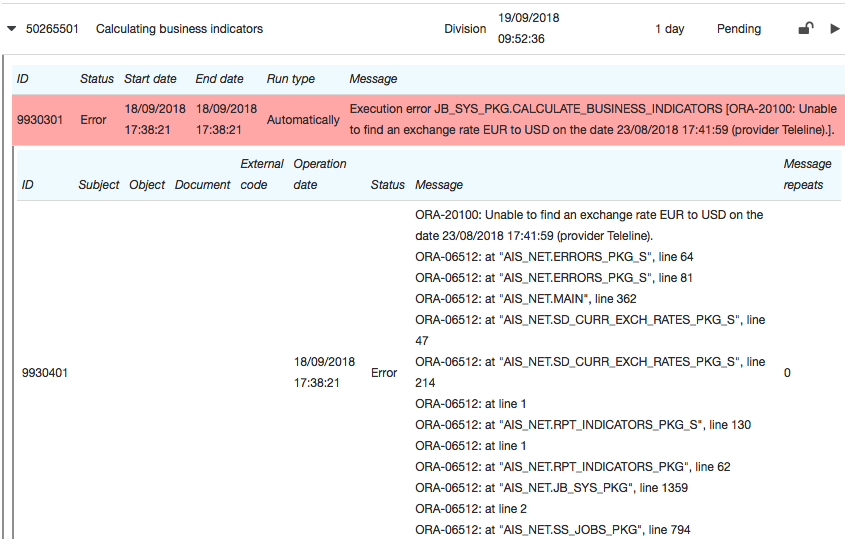
To close run logs, click the row again. To hide all rows with task runs, click  .
.
By clicking a task row you open its settings.
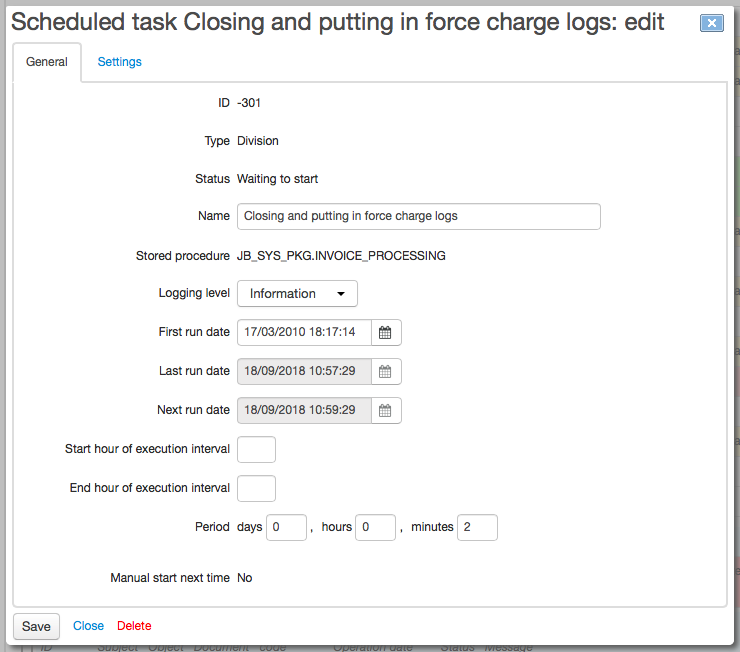
On the General tab, for tasks of the System, By division, and By object types there are execution parameters — a period and time interval (for example, for running a task only during night hours). Open the Settings tab to set parameters for a task. External tasks are executed in accordance with settings of external applications.
Oracle jobs
Tasks runs are managed by service jobs specified on the Oracle jobs tab. The number of Oracle jobs depends on the value of the Number of Oracle jobs for running scheduled tasks system parameter.
An Oracle job runs with a small period (about 30 s) and checks which tasks are to be started. In case there are several tasks, the Oracle job activates a task with the earliest start time and runs until the task is completed.
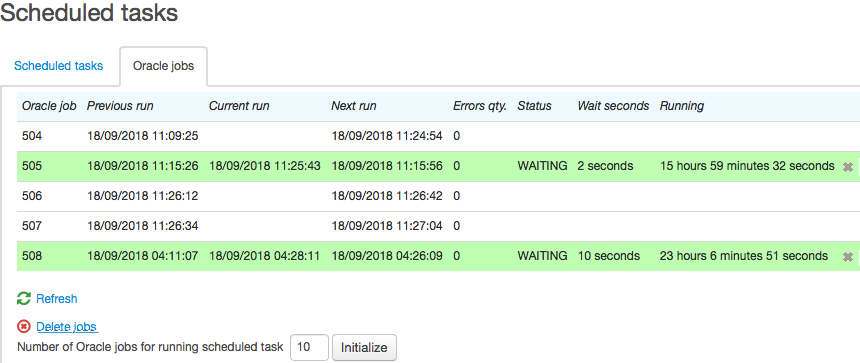
Besides times of the previous, current and next runs, the table also shows the following:
-
Failures qty. —
FAILURESfrom theSYS.DBA_JOBSsystem view, -
Status —
STATEfrom theV$SESSIONsystem view, -
Seconds in wait —
SECONDS_IN_WAITfrom theV$SESSIONsystem view, and -
Running —
TOTAL_TIMEfrom theSYS.DBA_JOBSsystem view.
An Oracle job can be aborted by clicking  .
.