Employees
In this section
Information about an organization, stored in the Registry of organizations also includes a list of employees. In Hydra Billing every employee is an individual, added to the registry of individuals.
You can manage employees on the Employees tab on the organization's page.
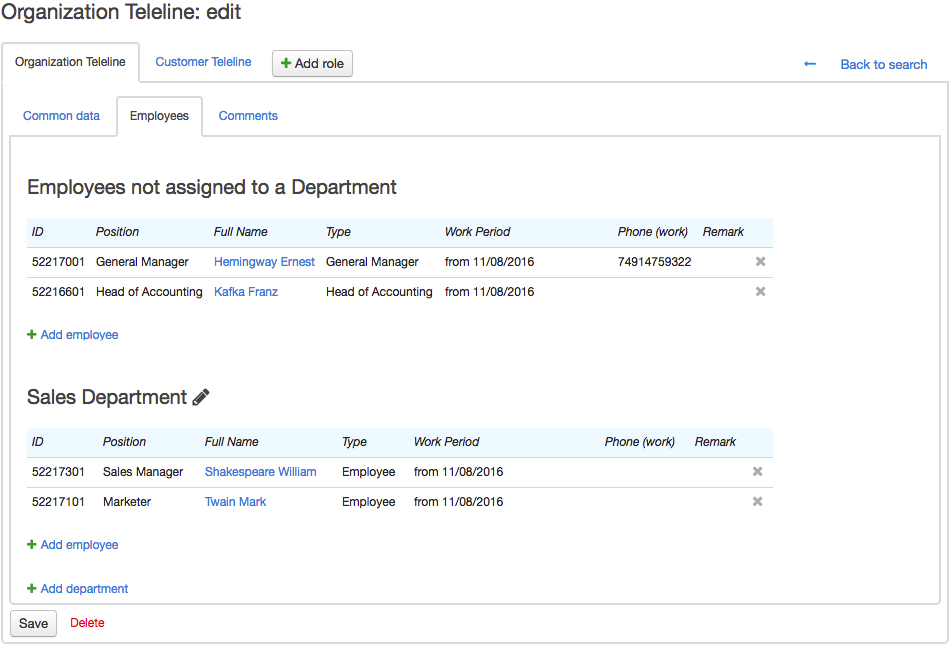
If the Hide dismissed employees check box is selected, only the current employees are shown.
Using Departments
You can attach employees to departments. To do so, you should create departments first.
To create a department, click  Add department and type the department name.
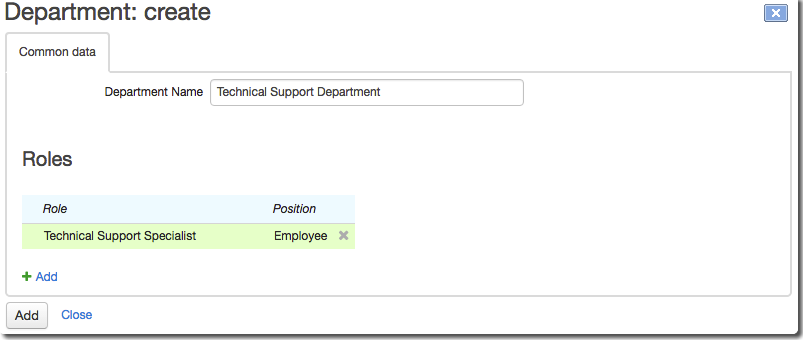
In the Roles section you can attach roles to a certain employee position type. As soon as an employee takes the position of the type, he or she is granted all the permission specified for the role. This is useful when you have a large number of employees. For example, when an employee is taking the position of the Technical specialist type in the Technical support department he or she gets all the rights associated with the Technical specialist role. After the employee's dismissal or removal, these rights will be canceled.
Click Add. You can edit a department’s name or attached roles later by clicking  next to its name.
Working with Employees
To add a new employee, click Add employee in the section of the corresponding department or the Employees not attached to any department section.
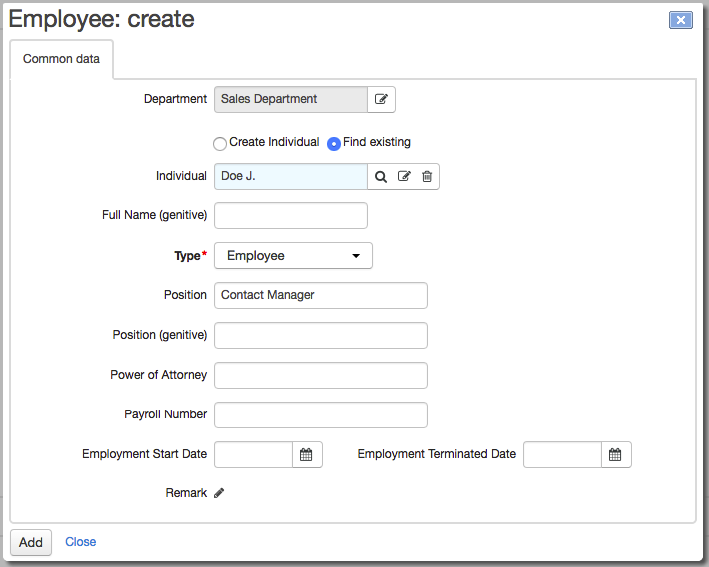
If a person you want to add to the organization's employees is already in the Registry of individuals, choose Use existing and enter him or her in Individual.
If the individual is not added yet, choose Create individual and enter the following: last name, first name, and middle name. You can find and edit the created individual in the Registry of individuals.
Choose the type of the employee position — you can use it in print templates. For example, when creating contracts, you can use the details of an employee who is a General manager, i.e. an employee who can represent the company's interests, even though the employee's official title is something else, for example Executive director. Types of positions are stored in the reference data.
If the position type has any roles attached to it, all users, created for the individual holding the corresponding position, will have all the rights given to those roles. Rights will be automatically revoked when an employee is dismissed.
Specify the name of the employee's position. If necessary, enter a power of attorney and a payroll number.
To complete the process of creating a new employee, click Add.
The same individual may be employed by several departments at the same time and hold several positions.
You can change the details of an existing employee by clicking his or her row on the Employees tab.
If you click Full name, the individual’s page will open. To edit the employee, click anywhere else in the row.
To dismiss an employee, enter Leaving date. You can delete the employee in the following ways:
-
click
 at the end of the row ;
 -
click Delete on the employee's page.