How to Issue Charge Logs Manually
See also
In some cases you may need to issue a charge log manually. For example, in case when during the billing period you find out that a charge log has been issued according to a specification with the wrong price for a service. Right after adding changes to the price specification you should cancel this charge log and issue a new one with the begin date same as the one for the billing period, i.e. a backdated charge log.
You can issue a charge log manually only if:
A charge log is always issued for the whole billing period specified in the service providing scheme.
To create a backdated charge log follow the steps below.
Step 1
Make sure that a customer has a subscription for the price plan or service at the time of issuing a charge log (the General tab → Subscriptions to services).
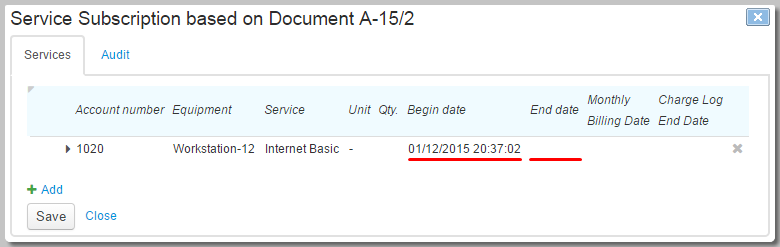
The subscription may be already closed, so select the Closed subscriptions check box to search for it.
In case there is no subscription, create a backdated one or change a period of an existing subscription (if there are no uncanceled charge logs based on it).
Step 2
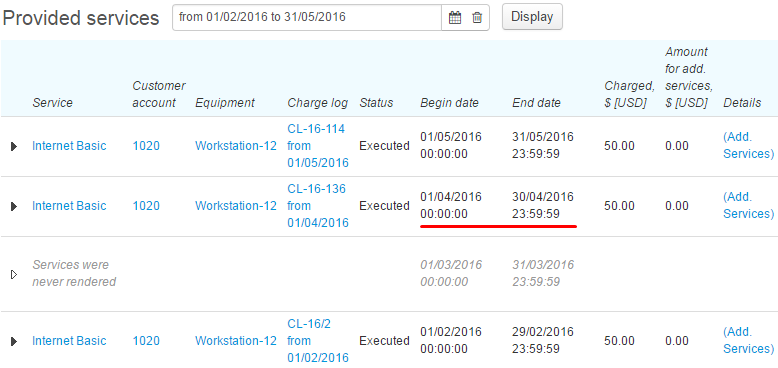
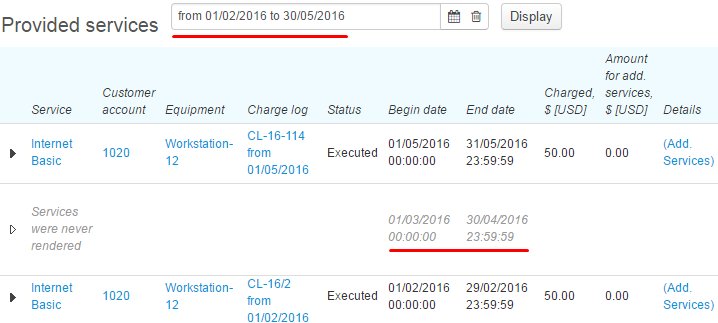
Make sure that during the whole service billing period no services have been provided, i.e. there are no uncanceled charge logs, with periods overlapping the one for the charge log to be issued (the Services tab → Provided services). For example, if in the service providing scheme the billing period equals a month, then the required subscription should have no charge logs from the start date and during the whole month.
Step 3
In the Ordered services section, type the required period you need to issue a charge log for. The period can be equal to either one or several service billing periods. In the latter case, several charge logs will be issued.
Click Refresh. The table shows all billing periods that overlap no periods of existing charge logs and which begin dates fall into the specified time span. If there is only the begin date of the time span specified, the current date is used as the end one.
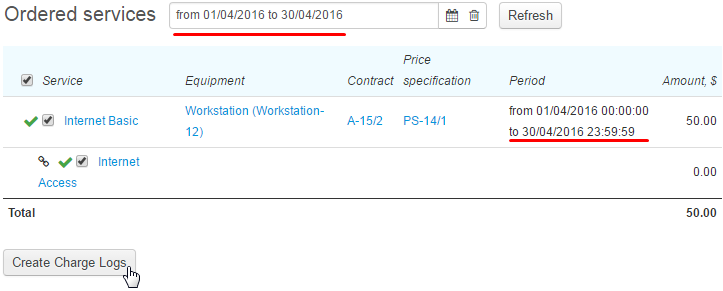
Check parameters of the ordered service. If everything is correct, choose necessary periods (if there are several) and click Issue charge logs.
If the charge log is successfully issued, a message with green background appears.

Step 4
You can once again make sure the charge log is issued correctly in the Provided services section by entering the required period.