Autonumbering
On the Administration menu, click Automunbering to set up autonumberers — templates for generating document and account numbers, customer codes, and both object codes and names. Use corresponding tabs at the top of the page to choose entities to be autonumbered.
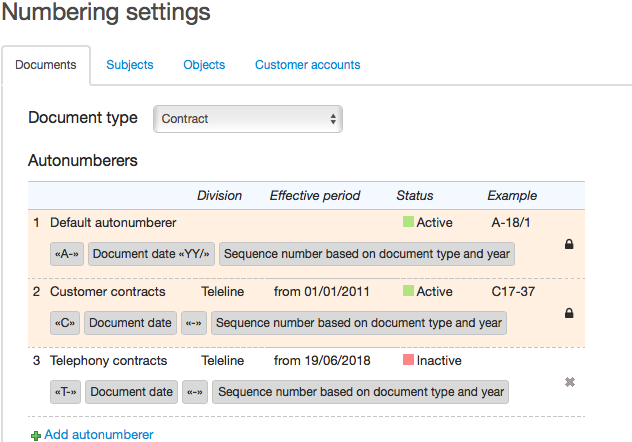
Each autonumberer has certain parameters specific for this or that entity (for example, a workflow for numbering documents, or a customer group for generating a customer code), as well as parameters common to all autonumberers:
-
Division — a division providing services.
-
Period — a period during which an autonumberer is to be used (expired autonumberers are highlighted in grey).
-
Status — initially, autonumberers are created as Inactive, to start using an autonumberer you should change its sstatus to Active.
A format of a number to be generated by the autonumberer should be first determined by a set of substitutes and their settings. Thus, in the example above, the Default autonumberer uses three substitutes: String (it has the value A- within its settings), Document date and Sequence number based on document type and year. Autonumberers for different entities can use various sets of substitutes.
An autonumberer which has been used to generate at least one number becomes blocked and cannot be further changed or deleted. Such an autonumberer is highlighted in red and marked with  sign, and in the Example column the latest number created on its basis is shown.
The only parameter of a blocked autonumberer available for editing is its period. If you need to edit a blocked autonumberer (for example, a contract number format has changed), set an end date for the current autonumberer and create a new one with necessary settings.
Generating a Number and Editing It
When an entity is created, for example, a new contract or a customer, the system chooses an autonumberer that is currently active (the Default autonumberer has the lowest priority). After that, the system defines substitute values to be used by the autonumberer, applies the specified settings to them and uses the generated value as a required number or code.
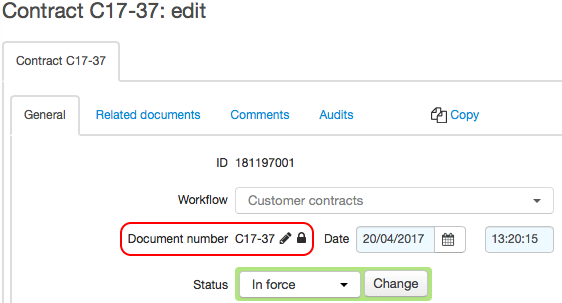
Next to a number generated by the autonumberer you can see that is used to delete the link between the generated value and its autonumberer in case you need to enter the value manually.
Deleting a link to an autonumberer and entering a number manually may lead to system errors. For example, when creating an entity a number generated by the autonumberer may possibly coincide with a number that has already been entered manually for another entity. In this case a new entity will not be created.
You should delete the link to the autonumberer only when it is strongly required, for example, if you need to change the number of an existing document.
If a number was generated by an autonumberer with such substitutes as Sequence number, Value from file, Custom string, Random number, or Reference value, there is  next to it. Click to enter a substitute value.

To cancel changes click  . To save changes, save the document, subject or object.