Regions
In this section
See also
- How to Manage Regions
- Real Estate Objects
Region is a part of a street address accurate to a building. Regions are used to enter and store addresses of subjects and objects, and furthermore, to search registries and to create reports.
On the Master Data menu, click Regions to see the registry of regions. Regions are stored in a tree hierarchy. Quick search by a region code or name is available within the registry.
Regions can be of two types: federal (applied by default) and municipal. A federal hierarchy consists of elements which represent parts of a commonly used mailing address format (country, city/town, street, building, etc.). Addresses are created on the basis of federal regions.
A municipal hierarchy takes into consideration intra-urban divisions (blocks, city districts, quarters, etc.). You can use it to group subjects and objects while searching or creating reports. For this you should bind federal regions to municipal ones first.
See below an example of the two hierarchies.
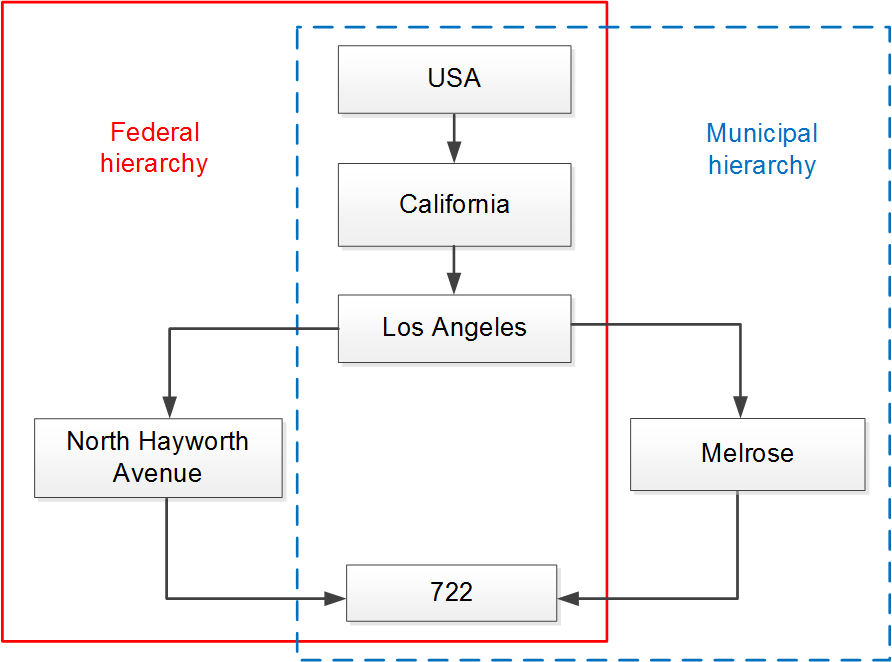
Scheme 9: Federal and municipal hierarchies
According to the federal hierarchy, the city of Los Angeles falls within the state of California, which, in its turn, is situated in the USA. According to the intra-urban division, the building number 722 in North Hayworth Avenue (from the federal hierarchy) is situated in the Melrose district (from the municipal hierarchy).
In Hydra Billing these hierarchies look as follows.
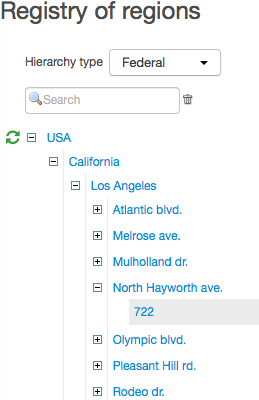
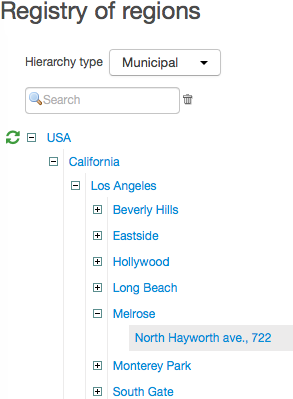
When specifying a region in Region on your service provider page, this region is duplicated from (all) into both hierarchies and is shown as a separate branch.
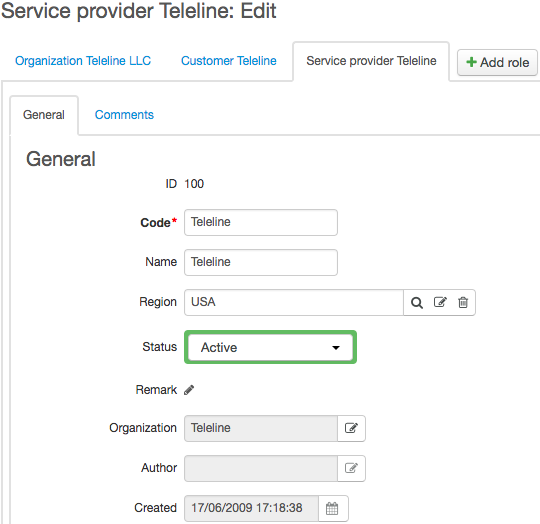
For example, when entering the USA region, a whole branch appears in both hierarchies with USA on the top. You can add and edit regions right within this branch.
Adding, Deleting, and Editing Regions
Click  next to the corresponding parent region to add a new region to the registry.
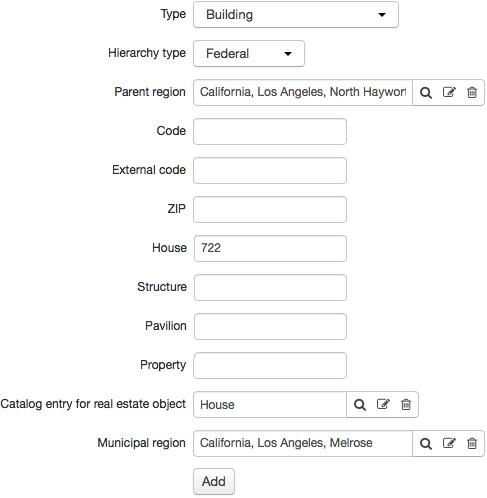
The following parameters are available when adding a region:
-
Type — a type of a region corresponding a commonly used name of a region (country, city/town, province, district, road, avenue, building, etc.).
-
Hierarchy type — municipal or federal. Within the municipal one, you can add only municipal regions.
-
Parent region — a region, within which a new region is located. You can enter a different region by clicking
 , so that the new region will be moved to the specified region.
 -
Municipal region — a municipal region, within which a federal region is located. Municipal regions can be specified only for federal regions of the Building type.
-
External code — a region identifier in an external system. It is used when integrating with external reference data.
-
Zip code — a zip code of a region.
-
House, Structure, Pavilion, and Property — are used only for regions of the Building type.
Specify necessary parameters and click Add. The added region will be automatically named. This name is shown in the regions registry and both object and subject addresses. The name is made of Type and Code, whereas regions of the Building type are named according to House, Structure, Pavilion, or Property.
Added regions are editable, except for Type and Hierarchy type.
In the municipal hierarchy, federal regions of the Building type bound to municipal ones cannot be edited.
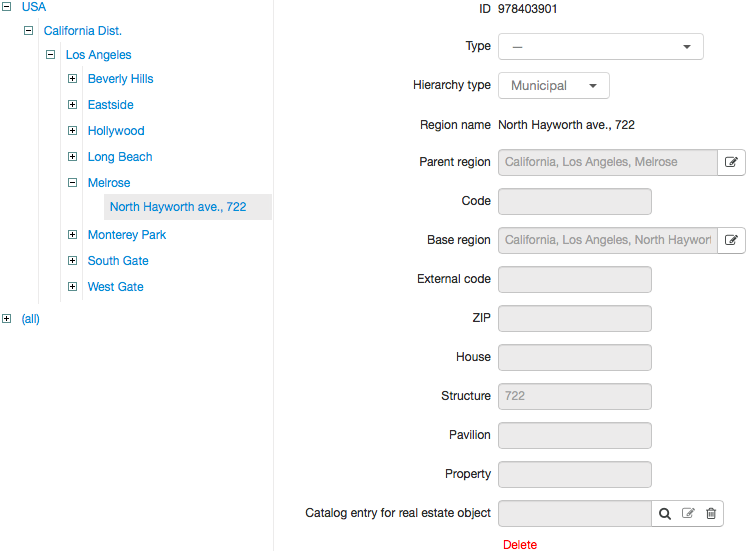
You can delete the binding by clicking Delete or  next to the necessary region in the municipal hierarchy. Or you can go to the federal hierarchy, choose the building and click
  next to Municipal region in its settings.
To delete a region, choose it in the registry and click Delete. A region of the Building type can be also deleted by clicking next to it in the regions tree. If you delete a region all its child regions are deleted too.
When creating a region of the Building type a real estate object is created on the basis of the House entry from the Realty section of the product catalog. This object stores various building parameters (a number of floors, rooms, etc.). These parameters are shown in the Real estate parameters section of the region's page.
You can open this real estate object by clicking  and edit its parameters.
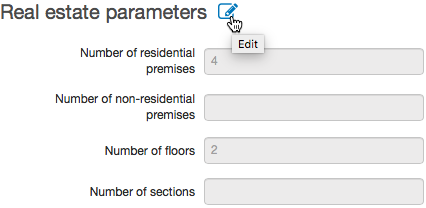
Besides, on a page of a region of the Building type there is a list of objects with addresses that contain this region.
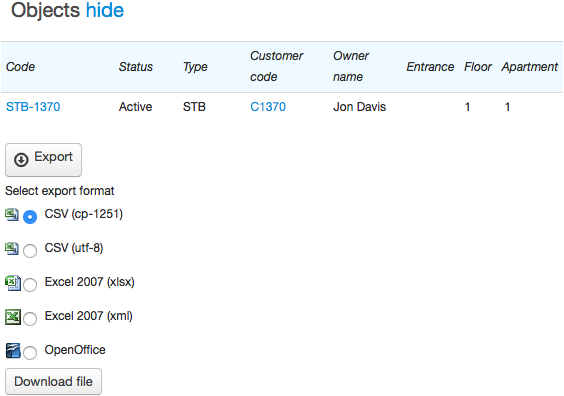
Click Show to open a list of objects. You can also export it in a file. To do so, click Export, choose a file format and click Download file.
Loading Regions
To add regions in bulk use loading from UTF-8 CSV file. To do so, click Load Regions on the Bulk Actions menu.
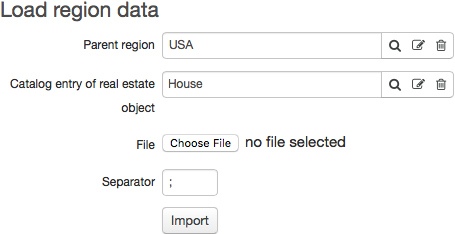
Enter Parent region for regions being loaded. Choose a file with data and a field separator. Click Import. Learn more about loading regions at wiki.hydra-billing.com.
Bindings of federal regions to municipal ones can be also loaded from a file along with regions.