Editing a Price Specification
Open a price specification from the Registry of price specifications via the menu Documents → Specifications → Price specifications, or by using quick search. You can also open a price specification by clicking the corresponding row in the Contents section of the contract, which has this specification as an annex.
You can change specification status, parameters, contents, as well as the prices of services it includes, on the condition that no charge logs have been issued on the basis of this specification.
Locking and Unlocking a Price Specification
If, on the basis of a price specification, a charge log has already been issued, the specification becomes locked. It means that most of its parameters, and its contents cannot be changed. Only a few changes are always available (even in a locked specification): Status, Period, and Remark.
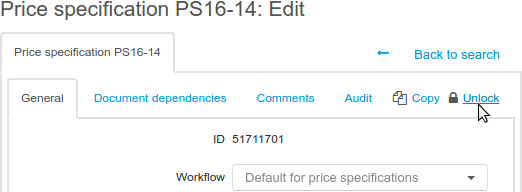
When you need to make changes in a locked price specification, for example, to add a price plan, or to correct a price of a service, follow these steps:
- Copy the locked price specification by clicking
 Copy. A new copied specification is created with the Draft status.
 - Edit the period of the locked specification: in the end date, enter a new date for the changes to come in force.
- Make all necessary changes in the specification copy (add services, edit prices, etc.).
- Set the day after the end date of the locked specification as the begin date of the specification copy.
- Change the status of the price specification copy from Draft to Active.
When the period of the locked price specification is over, and the charge logs made on its basis become executed, new charge logs will be issued on the basis of the new specification.
You can follow these steps to schedule any changes in existing price plans (for example, a price increase in the following month). Create a price specification containing new terms by copying the current one. Then set necessary begin and end dates for the current and following specifications. When the current specification expires, charge logs will be issued based on new terms.
In case of emergency, you can unlock a specification by entering an unlocking code. In order to get it, please contact Hydra Billing Solutions Inc. tech support and make sure to provide the reason why you need it.
The price specification unlocking often leads to failures in the service rating process.
Price Specification Contents
The Contents section shows the prices for services and price plans included into the price specification, along with parameters of their providing to customers.
All price plans or separate services belonging to one contract are to be unique. If a service is already included in one of the price specifications attached to the contract, you should not add it to another specification attached to the same contract.
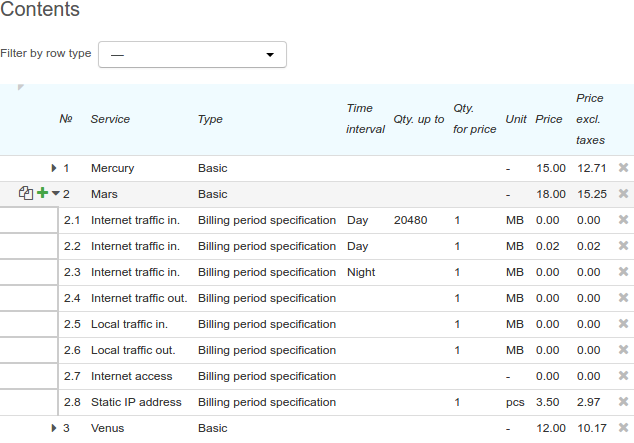
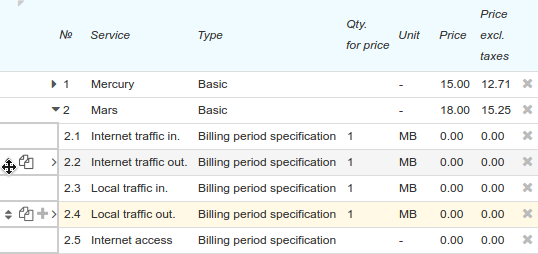
Information on services included into the specification is presented in the table. The rows which are corresponding to price plans can have child rows that specify the price plan contents. You can view the child rows by clicking  next to the parent row number. To hide child rows, click
  . If a row has no child rows, it is marked with
  .
.
To add a separate service or a price plan to the specification, click  Add. A new row is added to the table where you can choose a service and specify its parameters. To add a child row to the price plan, click
  in the parent row.
A table can contain the following columns.
-
Service. Here you are to specify a service (or a price plan) the price for which you need to determine. You can type its name, or click
 and choose the required product catalog entry from the Material assets, Price plans, or Services section.
To create a price plan, choose a product catalog entry from the Price plan section. To determine the contents of the price plan, add child rows to the corresponding row. For child rows in Service specify the product catalog entries from the Material assets or Services categories that are to be included in the price plan.
Entries from the Traffic services group can only be used in child rows, i.e. in the price plan contents.
-
Type. For the main rows it is always Basic and cannot be changed.
Type in child rows, in contrast with main rows, can have one of the two values. Each price plan is to contain at least one child row of the Billing period specification type. Such rows determine the rule for services rating as well as service providing parameters during the billing period.
Child rows of the Session specification type are applied only for traffic services with time-based rating, in addition to the rows of the Billing period specification type. With their help you can set up prices for services in terms of one session (a dial-up session or a phone call) depending on its duration, as well as a special rating unit. For example, such rows are used to create free calls with duration not longer that the specified one, or to rate phone calls per second starting from the second minute.
As follows, with the rows of such type you can make the starting 5-second period of the phone call free of charge or apply a per-second rating starting from the first minute.
-
Area. Is used only for phone services to set the price for phone calls to the specific area. Area can be filled in with an area code or a group of area codes. With
, choose an area or a group of area codes from the registry. The registry can be found in the traffic classes specification, which is specified in Traffic classes specification on the General tab of the price specification.It is obligatory to fill in Area for phone services: type the required area code (a group of area codes), or use All, if the price applies to all possible areas. Exceptions are the rows with child rows — they require Area to be empty.
-
Route. Is used for phone services in case there are several providers. Here you specify the priority for choosing the provider for an outbound phone call. This information is sent to equipment (a PBX, for example) and defines the order of attempts to establish a connection.
To edit the route, click
 . Add providers in the proper order. To process a phone call, the first provider on the list is used. If the session cannot be supported by this provider, the call is forwarded to the next one. Note that applying routes actually depends on the provider's equipment model.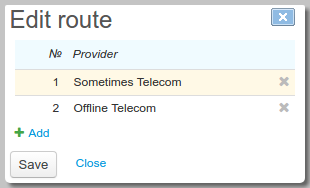
The route can be specified both in a main row and in child ones with the Billing period specification type. The route in the child row has a higher priority compared to the route in the main row. It allows defining special routes to process outbound call to specific areas.
-
Time interval. Is used for child rows of the Billing period specification type. With it, you can change the service parameters depending on the time the service is provided. For example, you can increase the bandwidth for the inbound Internet connection at night, or lower the prices for phone calls on holidays. Choose the time interval from the list. You should add intervals to the reference data (on the Master Data menu click Reference Data) and define them in the corresponding time intervals specification.
If at least one of the rows of the price specification has a time interval, you need to make sure that for the whole price specification period there is a time interval specification in force. This specification is to contain all intervals which are used in the price specification.
There can also be a row with an empty Time interval. Such rows are in force regardless of the time the services are provided.
The sequence of rows with time intervals is important and acts similar to the rows with quotas for traffic rating. If a row without time interval comes before the rows with intervals, the last ones will never be used.
If for the price specification you need to define time intervals covering only certain hours but not the whole time, then the last row added should contain no time interval, or a time interval value by default (this value is specified in the time intervals specification).
-
Tax rate. If the tax rate is not specified for the whole document, you need to type it in each row of the specification, provided that in child rows belonging to one price plan there is the same rate as in the main one. Typically, there is only one tax rate per document.
-
Qty. up to (included). Is filled in when defining the service price depending on its amount that is to be provided in the billing period. Apply it when creating price plans with quotas (for example, those for prices or bandwidth). When you create price plans with multiple quotas, note that the quotas are independent of each other. Each row describing a quota has Qty. up to showing the amount that a customer can consume on the conditions specified in this row (price, bandwidth, etc.). For example, to see the amount that a customer is to consume in order to reach the third quota, you need to sum up values in Qty. up to of the first and second quotas.
-
Qty. for price and Unit. These define the amount of product or service the price is specified for. For example, 5 s, 1 GB, or 10 pcs. Rating is done proportionally with the actually provided amount. For price plans, the amount and the unit are to be entered in child rows.
-
Qty. for rating and Unit for rating. It defines the accuracy of rating. For example, for a per-minute phone service rating you need to specify not only the price per minute of session, but also state 1 min as the unit for rating. For price plans, the quantity for rating and the unit for rating are to be entered only in child rows.
Typically, special units for rating are used only for voice traffic rating. It happens so because each phone call is rated separately, whereas while rating traffic services, the total amount of the provided service over the period is rated (for example, per month). Thus, for traffic services, we recommend applying 1 byte as a unit for rating, in order to avoid unacceptable rounding with each traffic loading into billing.
-
Rounding rule for quantity and Rounding rule for amount. When rating the provided services, you may need to round the quantity or the total amount. Rounding rules are determined in the reference data. Each rule specifies the number of digits after the point and the type of rounding (up, down, or mathematical).
-
Price formula. Is used only in child rows. If the row has Session specification type, it is to show the value equal to 0, or the substitute
$PRICE.With$PRICE, the session is rated using the price from the corresponding row of the Billing period specification type, with pricing and rating units as per this row.In child rows of the Billing period specification type, Price formula is used when reselling a service, such as, for example, voice traffic. The
$BUY_PRICEsubstitute refers to the purchase price, as per the purchase price specification, and the price formula depends on it. In fact, any SQL numeric function can be used as the price formula. For example, to resell a service at the price 20 % higher than the purchase one, enter$BUY_PRICE * 1,2. -
Price. It determines the price for the service. The price specified in the main row of the price plan is the price plan cost over its billing period (i.e. subscription fee). Child rows specify the price per service unit, for example, per one Mb or 1 minute.
The price has a lower priority compared to the price formula, i.e. when both are filled in (Price and Price formula), a service is rated according to the formula.
-
Price excl. taxes. It shows the price excluding taxes.
-
Currency. Just like Tax rate, this is active in case the currency is not specified for the whole document. In this case, enter the currency in each row of the specification.
-
Speed value and Speed unit. Are used for defining the bandwidth limitation when providing a service.
-
$PRICE_PARAM. Here an optional additional parameter can be added for describing a service provision, for example, the Internet traffic priority. With the help of substitutions, this parameter is sent to events managing the service parameters.
-
Comment for customer. Here you can enter the information on the price plan (for example, its short description), which a customer can see when changing the price plan in the Self-Care Portal.
Rows Order in a Specification
Child rows corresponding to one main row are to be listed in the priority order, because when a service is rated, the price is defined by the first matching child row in the table.
The order of child rows can be changed even after they are added to the table: click  in the row which position you need change and drag it to the desired position.