Tables
Tables are an important way of providing information in Hydra Billing. Tables may look different and their properties may vary depending on the context.
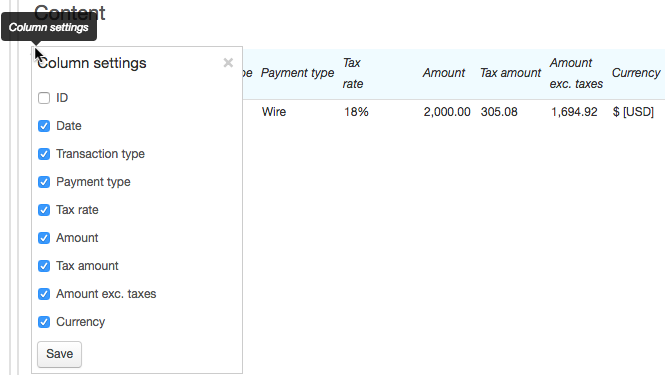
Some tables have a fixed number of columns, whereas in other tables you can select which columns should appear. These tables are marked with  . Click it to choose visible columns, then click Save. The saved settings will be valid only for the current user.
If you want to change some data in the table, click in the row and make the changes in the pop-up window. To add a new row, use  . To delete a row, click
  .
.
In some tables, you can make changes right on the current page, without any pop-up windows. When you click in a row of such a table, it goes into edit mode:

To exit the edit mode, just click anywhere else on the page and the changes will be highlighted in yellow:

The newly added rows in these tables are highlighted in green:

The deleted ones are highlighted in red:

To cancel deleting a row click  .
.
Changes made to these tables are only saved when you click Save at the bottom of the page.