Office
In this section
See also
- Payment Documents
On the Office menu, there are tools to make payments (i.e. to create payment documents) and to view reports on recent payments.
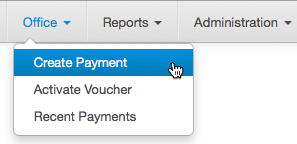
Making a Payment
To create a new payment document, on the Office menu click Create Payment.
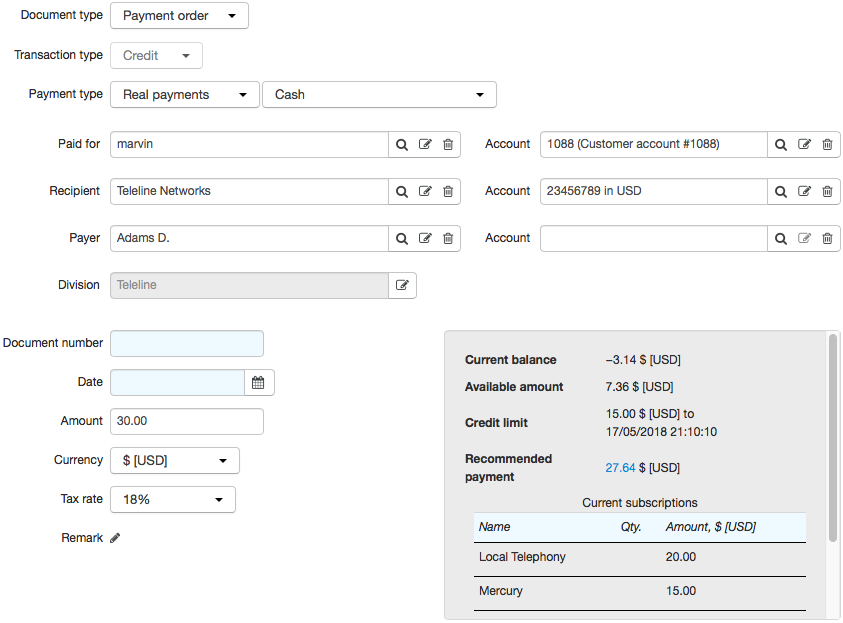
Fill in the following:
-
Document type. Cash order is used when putting real money into a cash register. Payment order is used for transferring funds to a current account (for a real payment) or a customer account (for a virtual payment).
-
Payment type. Real payments show movements of real funds between individuals and/or organizations, virtual payments — movements of funds within the system, for example, between customers and providers. Choose a real or virtual payment type (in the given example — Cash). All payment types are stored in corresponding reference data
When making a real payment, along with a cash order or a payment order (depending on Document type), an additional payment order is automatically created showing the movement of funds within the system.
For example, when an individual makes a payment for a customer, a cash order is created for a deposited amount, with an organization (that acts as a service provider) as the recipient and the individual as the payer. Then a payment order is created for a virtual payment, with the customer as the recipient and the provider as the payer. The amount specified in the cash order is the initial amount for the payment order.
All payment documents (cash orders and payment orders) are stored in the corresponding registry.
-
Paid for. A customer a real payment is made for. Enter a customer account in Account. Paid for is used only for real payments, not virtual ones.
-
Recipient. For a real payment — an organization or an individual, for a virtual payment — a customer or a service provider. In Account enter a current account (for the real payment) or a customer account (for the virtual one).
-
Payer. For a real payment — an organization or an individual making the payment, for a virtual payment — a customer or an operator. In Account enter a current account (for the real payment) or a customer account (for the virtual one).
-
Document number. Here a payment document number is specified. If you leave it empty the number is assigned automatically.
-
Date. A date of a payment. The current date is used by default.
-
Amount. A payment amount. If the amount is negative funds are charged off an account, if positive — transferred to the account.
-
Currency. A currency of a payment.
A real payment currency can be different from a currency of a customer account (specified in Account next to Paid for), however, it is to be the same one as a recipient account currency. If the payment currency does not match the customer account currency then the amount is recalculated in accordance with an exchange rates specification valid on the payment date. In this case, the real payment will be created with both the initial amount and the initial currency and the virtual one based on it — with the recalculated amount and the customer account currency.
For example, if the customer account is in USD, the customer wants to pay 10 EUR, and the EUR to USD exchange rate is 1.25, then the real payment is created for 10 EUR and the virtual one — for 12.5 USD.
-
Tax rate. A rate at which a tax is levied.
-
Remark. Any comment.
When making a payment you can enter a customer code in Paid for, or his/her account in Account next to it. The system automatically matches missing parameters, however, in case of ambiguity, some of the fields may remain empty. For example, if you enter some customer code in Paid for and the customer has multiple accounts, Account cannot be populated automatically so you need to specify it manually. Automatically populated parameters can also be changed manually.
When a customer account is specified, its status is shown next to Amount.
-
Current balance — a customer account balance which can be negative.
-
Available funds are funds that a customer can use to order new services, available funds cannot be negative.
-
Recommended payment — a payment amount recommended to a customer. It is calculated automatically and includes both the amount required to cover the current debt and the prepayment for the next billing period if it is to start soon. Click it to view details.
Click Add to create a payment.
Payments made over the last 5 days are shown in the Recent payments table.

Any of these payments can be canceled by clicking  in the corresponding row.
Payments canceled over the last 5 days are shown in a separate table (if there are any).

Building a Report on Recent Payments
To build a report on recent payments, on the Office menu click Recent payments.
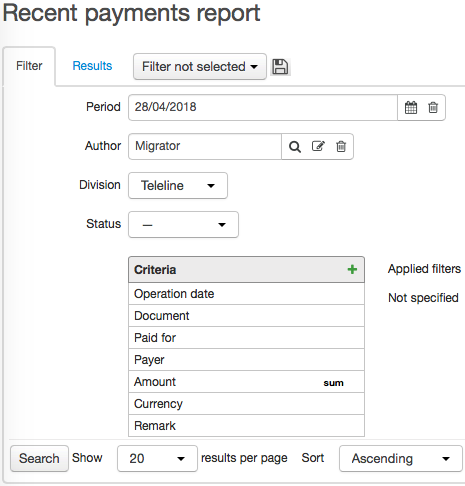
Fill in the following.
-
Period — a timespan, a report is to be build for, with the current date as a default value. If your have no permissions to view or edit payment documents then the report period is limited to the interval set in division parameters, for example, viewing payments may be possible only for the last few days.
-
Author — a user that created a payment, with the current user as a default value. If you have the permission to view or edit payment documents you can leave it empty. In this case, all payments are shown for the specified period regardless of whom they were created by.
-
Status — one of the three values: a dash («—»), In force, or Canceled. A dash is set as the default value which means that payments in all two statuses will be shown.
Report contents depends on chosen criteria and filters applied to them.s
Click Search to build a report, i.e. a table with columns corresponding to set criteria. For example, if you add the Operation date, Document, Customer, Payer, Amount (the Sum function applied to it), and Currency criteria, the report is built as follows.
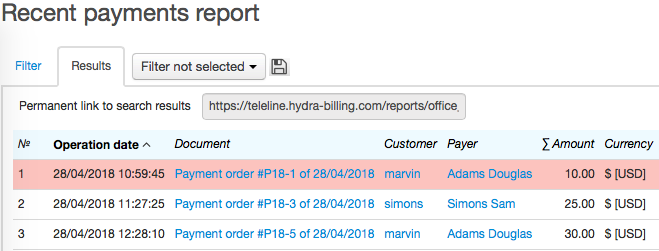
Canceled payments are highlighted in red.