Addresses
In this section
Make sure that in the Addresses section of the product catalog entries, on the basis of which corresponding objects (CPE, other equipment, components, etc.) are created, there are all necessary types and kinds of addresses.
Viewing Addresses
A list of all addresses for a certain subject or object is shown in the Addresses section.
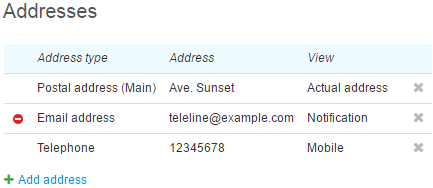
Contact information of a subject is shown as follows.
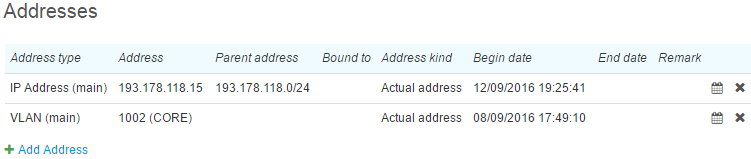
Object addresses have more details, such as: Parent address, Bound to, and Begin/End dates.
An address can have one of the two statuses: Enabled or Disabled. Disabled addresses are marked with  .
.
Adding a New Address
To bind an address to an object or a subject you need to have the permission to view a registry of addresses of the corresponding type.
To add a new address click  Add address in the Addresses section. Choose Address type: Street address (a residence address), URL, Phone number, Email, etc.
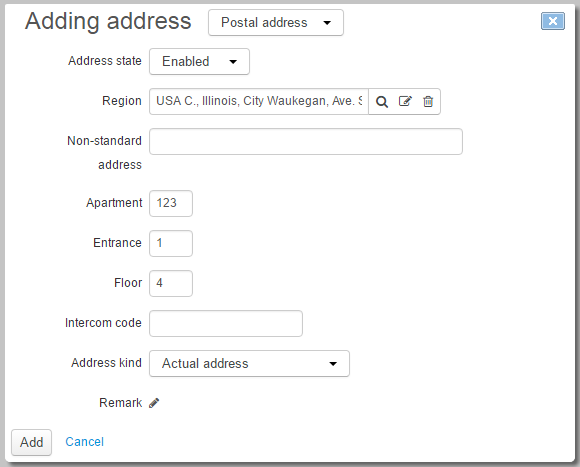
When adding a street address, enter one of the federal regions registered in the system in Region: click  and choose a region using search or the regions registry. If the necessary region is not there you need to add it to the regions registry first.
Non-standard address is used for additional information about address which cannot be entered in other boxes. Besides, here you can enter a country, a city, or a building, etc., when making additions to the registry is impossible. In other boxes, enter a flat number, a floor, an entrance, specify an address kind (for example, a service address or a registered office).
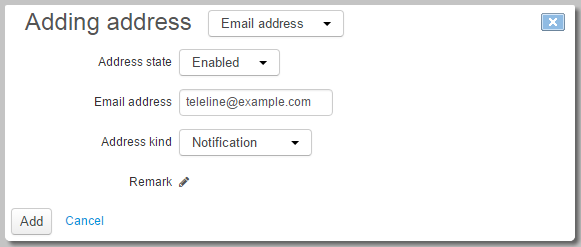
When adding an address of another type, for example, an Email or a Skype name, specify the necessary data in the corresponding boxes.
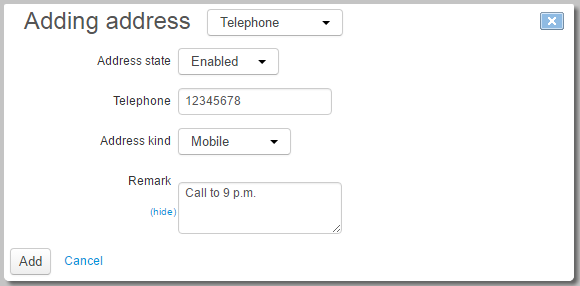
When adding a phone number, enter it starting from a country code (7 for Russia) without any separators. When adding a phone number to an object, you can specify an area code (it will be shown in Parent address), otherwise it is matched automatically.
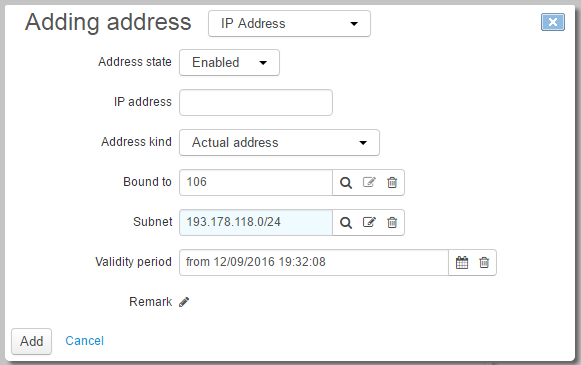
When adding an IP address enter VLAN in Bound to if it is required. A subnet for an IP address is matched automatically when saving an address. If you leave IP address empty and specify a subnet, then a first free IP address will be selected from the chosen subnet.
Newly created IP addresses, subnets and phone numbers are automatically added to traffic classes specifications in force, which are currently active and are set for a future period.
Click Add. If you do not want to save this address, click Cancel.
Editing an Address
If you need to edit an existing address, click the corresponding row in the address list. Add necessary changes and click Save.
To make one of addresses of a similar type the main, select the Primary address check box. With it you can define a priority phone number among available ones, or mark one of the email addresses your customer mostly uses.
To delete an address click  in the corresponding row.