Documents
In this section
Hydra Billing workflow is totally electronic. Relations between the subjects of the system (providers and customers) are regulated via contacts and their annexes. After the services, price plans, and their parameters are specified in the product catalog, the price plan contents and its services prices are determined in price specifications which are created as annexes to contracts. For a more flexible services rating, depending on the times of rating, there are time intervals specifications. Detailed information on the services consumed and provided to customers, including the prices, is in the charge logs.
Registries
All documents are stored in registries. In Hydra Billing, there are registries of the following types:
-
orders;
-
period closing memos;
-
period opening memos;
-
payment documents (cash orders and payment orders);
-
bank statements;
-
time intervals specifications;
-
traffic classes specifications;
-
exchange rates specifications;
-
subscription migration plans;
-
vouchers issuance statements.
You can access all registries via the Documents menu.
Creating a New Document
A new document can be created in the following ways:
-
By clicking
 next to the necessary type of document in the menu: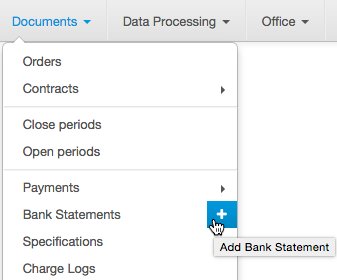
-
By opening the registry of documents of the necessary type and clicking
 Add on the right of the page: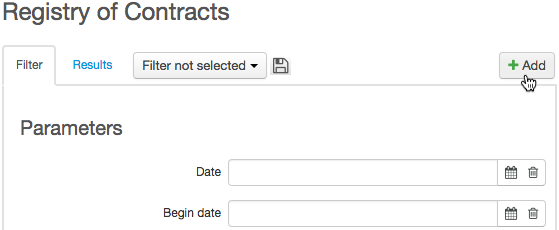
The created document is automatically numbered according to the rules of numbering. If necessary, the number can be edited by clicking  next to it, or entered manually by clicking
  . The date is populated by the current date by default.
Fill in the necessary boxes (later you can edit them) and click Add, a new document is added to the system as a Draft.
Copying a Document
You can create a new document using the documents you already have by clicking  Copy on the particular document page.
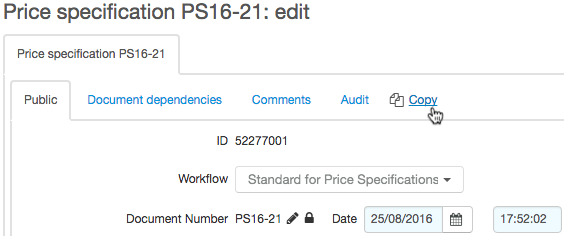
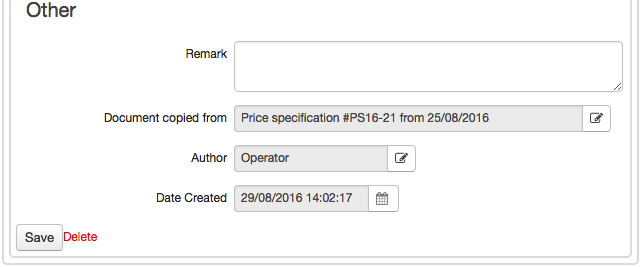
By clicking it, you open the page for editing the copied document. The copied document is created as a Draft and in the Other section you can see which original document was used. Copying is available only for certain types of documents.
Editing Documents
Pages for editing documents contain the following parts: the heading, the main body, and additional information (when and whom was the document created by, etc.). The heading contains information which is general for all types of documents, along with the information special for a particular type. Contents are tailored for each type of documents.
See the heading for a contract.
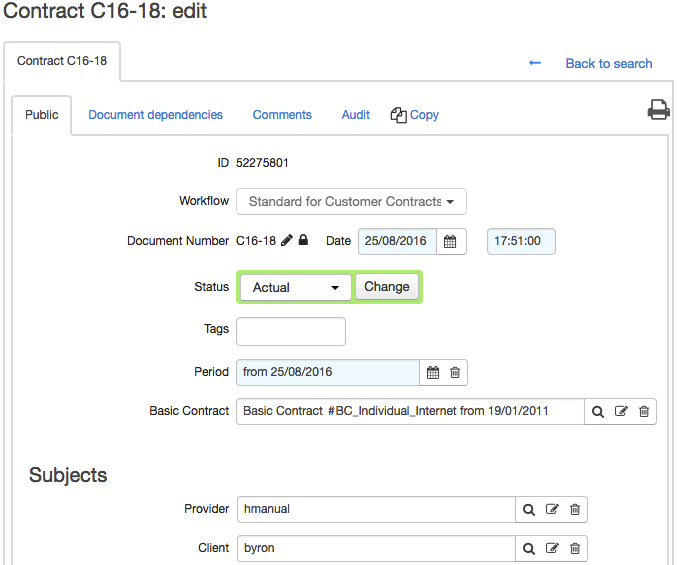
Each document contains such boxes as Workflow, Document number, Date, Status, and Period.
-
Workflow. The box contains the workflow, which regulates the document in the system. The workflow is selected at the time of the document creation and cannot be changed.
-
Document number. The box has a purpose similar to the number of a real document, such as a contract number or a proforma invoice. The system has its own numbering rule for the documents. Usually the document is numbered by default at the time of creation.
-
Date. Together with the number, they are used for identifying a document (for example, the contract # А-07/10 of 12.19.2007). At the time of the document creation this box is automatically populated with the current date.
-
Status. Together with the period, it is one of the essential properties of a document (see next).
-
Period. It is a timespan the document is valid for. It can be a closed one (with a start and end date), or an open one (with only a start date).
Such sections as Subjects, Object, and Addresses show the roles defined in the workflow.
The Custom actions section shows the list of actions, which are manageable according of the document's workflow. With Hydra Billing, you can switch on/off the action for the document, selecting On/Off in the drop-down menu. If an action is marked as Ask, then, when transferring the document into the status the action is bound to, you should choose, whether to execute this action or not.
Documents Audit
On a document page (except for traffic class specifications), you can see the Audit tab, which, when having certain permissions, allows tracking down the changes in document's parameters. For example, in orders you can check the main parameters changes, as well as the contents, subjects, services, addresses, and some custom fields.
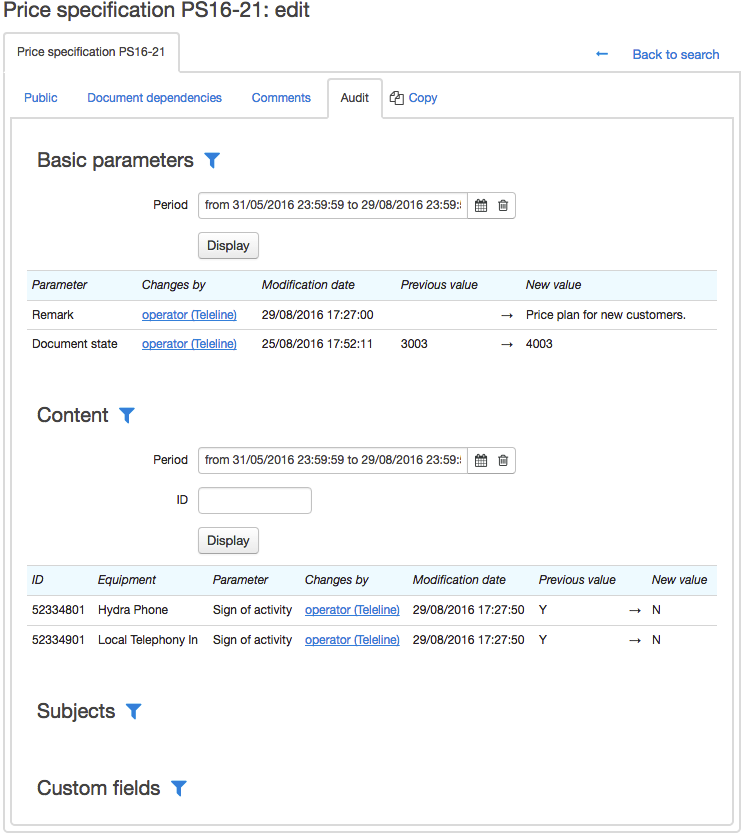
To view the history, click Show filter next to the corresponding section, choose the period, if necessary, the identifier of the data base line, which contains the record about the changed field or its relation with the current document. Then click View.
Status and Period of a Document
The document's status determines the actions which you and/or the system can make with it.
A set of possible statuses is special for each document and is determined by the workflow, but the standard statuses are usual: Draft, In force, Canceled.
-
In force. The status means that the document is effective. Mostly, the system is influenced by the documents with this status, so when editing documents in force, particularly price specifications or time intervals specifications, one should be especially careful.
-
Draft. All documents are created with this status. Drafts can be edited any time without affecting the system. This is the only status when a document can be physically deleted. Having completed and checked all the document, you can transfer the document into In force. This process is called putting a document in force.
-
Canceled. It is used for storing any documents out of force. Documents with this status cannot be edited. Canceled documents are stored in the system but are not used any longer.
Having put a document in force, you cannot delete it from the system any more. However, you can cancel it, which is similar to deleting.
The status of a document does not depend on its period. In particular, a document can be in force, even after its period is over or has not started yet.
You should not cancel a document only due to the reason that its period is over, as it may affect the work of the system.
For example, when rerating services provided to a customer in the previous period, the rating is done according to the price specification which was in force during that period. If the price specification is canceled by mistake, when its period is over, either the customer would not be able to have rerating, as the system cannot determine prices for the provided services, or the rerating would be done according to another price specification in force at the moment, so the rating might be incorrect.
Such a situation can be corrected, if before the rerating you create a copy of the canceled specification, make it backdated and put it in force, but in other situations, the solution may be more labor-intensive or even impossible.
Bulk Change of Documents' Statuses
Hydra Billing allows changing statuses for multiple document simultaneously. It can be done within one registry (invoices, contracts, price specifications, ets.). Typically, it is used for invoices.
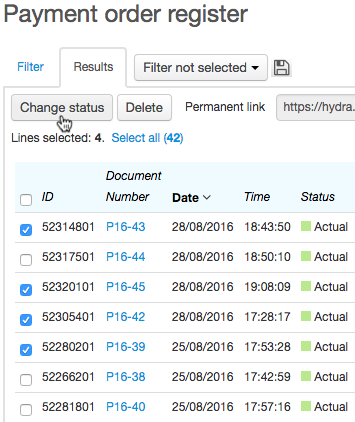
When changing statuses in bulk, you should:
- Select all necessary documents (the checkbox in the table heading allows selecting all documents on the page),
- If necessary, click Select all,
-
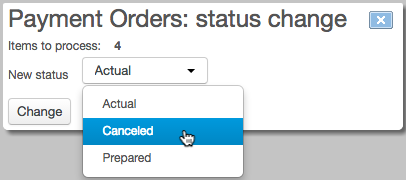
Click Change status, select a new status and click Change.