Reports on Accounts Status
Accounts status reports are used to trace the movement of funds on customer accounts for any periods, and mostly often are created to monitor customers' debts.
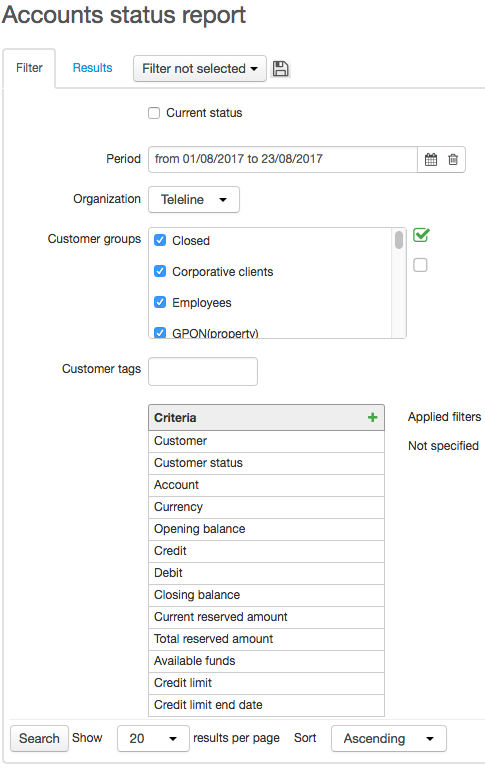
The Filter tab contains the following settings:
-
Current status — when selected, the report contains the current accounts status (accurate to a second). When cleared, you can create a report for any period.
-
Period — is used to enter the period for a report, it is locked when the Current status check box is selected.
-
Organization — an organization which data is to be included in a report;
-
Customer groups — here you enter groups of customers to create a report on.
With the help of available criteria you can view customer accounts in detail. Select the Current status check box and add the following criteria: Customer, Closing balance, Current reserved amount, Total reserved amount, Available funds, Credit limit, and Credit limit end date. The Opening balance criterion corresponds to the customer account balance at the beginning of a period, and the Closing balance criterion — at the end of a period (when the Current status check box is selected, both balances match).
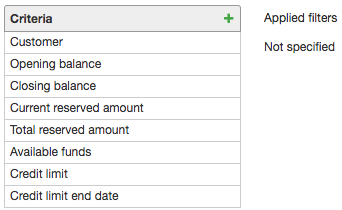
Such criteria as Current reserved amount, Total reserved amount, Available funds, Credit limit, and Credit limit end date are reasonable only for reports created for the current period, i.e. when the Current status check box is selected. You should not use them in reports for previous periods.
On the Results tab you can view a detailed report on customer accounts:
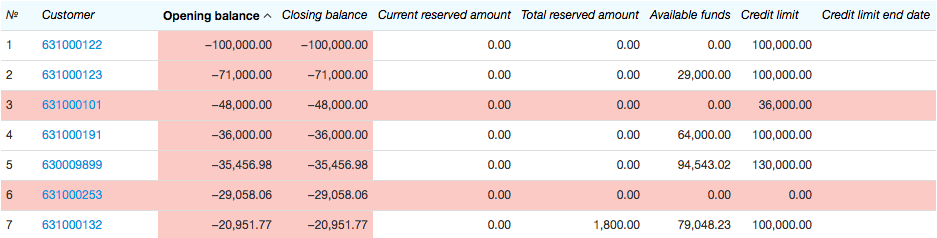
When a negative amount appears in the Opening balance column, or the sum of amounts in the Closing balance and Credit limit columns is negative, then both Opening balance and Closing balance are highlighted in red (rows 1 and 2 as per the example). When both conditions are met, the whole row in the table becomes red (rows 3 and 6). As for the Credit limit and Credit limit end date columns, they are highlighted in red in case less than three days remain before the credit limit expires.
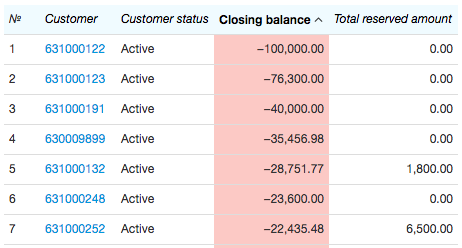
In the example below, see how to view all active customers in arrears. Select the Current status check box, choose necessary customer groups, add the following criteria: Customer, Customer status, Closing balance, Total reserved amount. Make the Customer status criterion equal to Active, and the Closing balance criterion less than 0.
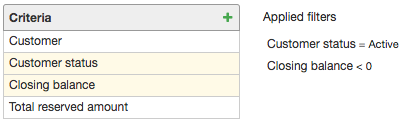
The report is created containing all customers with a negative balance. The total amount in arrears of these customers is calculated as the sum of their total closing balance and the total reserved amount.
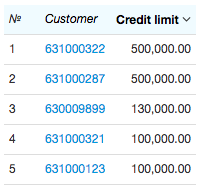
With the help of this report you can view customers with credit limits by using Credit limit and Credit limit end date criteria. For example, if you are interested only in permanent credit limits, you should apply Not defined filter to the Credit limit end date criterion while clearing the Display check box, so that a table is created without an empty column for credit limit periods.
You can use the Basic subject type criterion equal to Organization to create a report on organizations only. With the help of the Account criterion you can view the movement of funds on a certain account.