Equipment
In this section
See also
In the Equipment section on the General tab you can view the equipment used to provide services to the customer. This equipment can be, for example, a customer's personal computer, an IP phone or a network service port.
To add a new equipment, click  Add equipment.
Choose the equipment to add: independent equipment or а component of the network service.
Adding Equipment
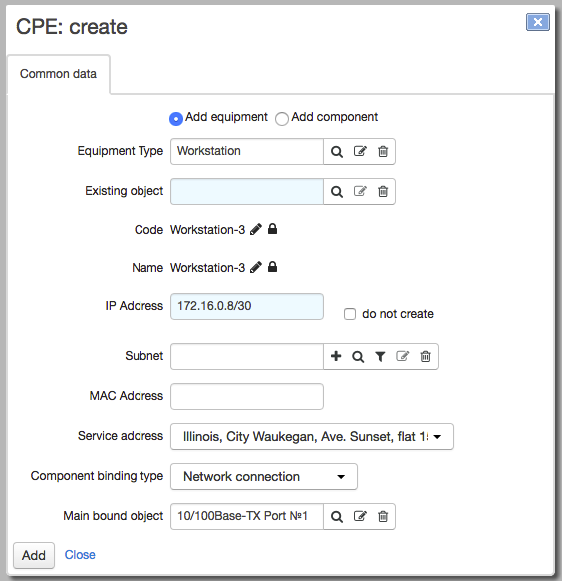
Click Add equipment.
Use Existing object, if you want to make the customer the owner of the already created equipment.
Or specify the equipment type, i.e. the catalog entry. Code and Name can be either entered manually or using autonumbering.
Enter an IP address or choose a subnet from the Registry of IP subnets.In the latter case, the IP address will be selected automatically from the specified subnet. You can also select the Don't create check box and leave IP address and Subnet blank. If necessary, enter the МАС address.
If you enter a subnet and select the Don't create check box next to IP address, the whole subnet will be assigned to the equipment to be created. You can do so for an organization’s equipment to avoid creating several consecutive IP addresses.
You can create a subnet, by clicking  next to Subnet. See two examples of creating the same subnet:P
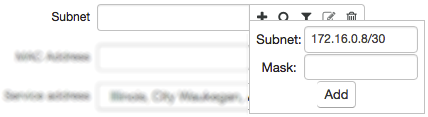
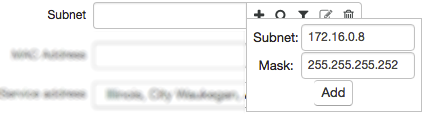
The IP address or the subnet will be added to the traffic classes specifications which are valid now and will be valid in the future.
If you enter an IP address from a subnet (or a subnet to select a free IP address from) that belongs to a VLAN, this VLAN will be automatically added to the created equipment and the IP address will bound to the VLAN. If you also enter a MAC address, Hydra will bind VLAN to it. For more details on binding addresses to equipment please see the Editing Active Equipment section.
If necessary, select Service address from the list of customer addresses.
Since equipment without any components cannot work in the system, when you create CPE, a component is automatically created for it. If you need to bind this component to any managing equipment or network service, enter Component binding type and Main bound object. You can also add and edit bindings on the equipment page.
To edit the equipment, click its code in the Equipment section. Make the necessary changes and click Save.
Adding Network Service Components
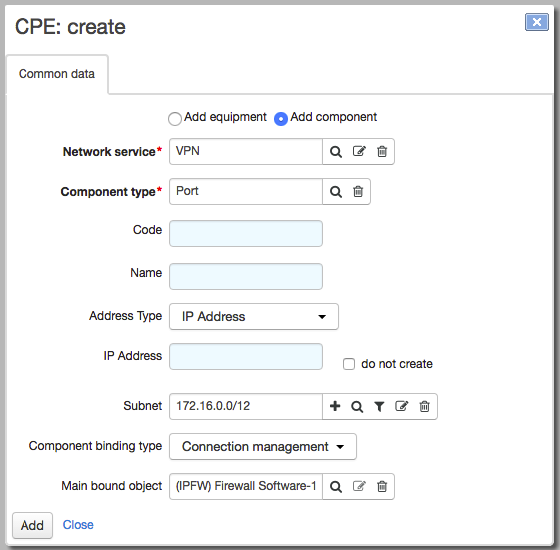
To add a component, click Add component. Enter Network service and Component type (network service component types are entered in the specification). Code and Name for the component can be entered manually or automatically via autonumbering.
If necessary, enter the type of address you want to assign to the component. If you select IP address, enter IP address. Or enter Subnet and leave IP address blank, so the IP address will be selected automatically from the entered subnet.
Set a binding you want. In this example, the VPN network service port, which the customer owns, is bound to the IPFW (Firewall software) network service with the Connection management binding type. You can also add and edit bindings on the component's page.
To edit the component, click its code in the Component column. Make the necessary changes and click Save.