Custom Fields
For groups and catalog entries, including types of specification items, you can add custom fields.
Click Edit in the Custom fields section on the entry or group page. In the Custom fields window you can add, edit and delete custom fields.

To add a new field, click  Add.
Add.
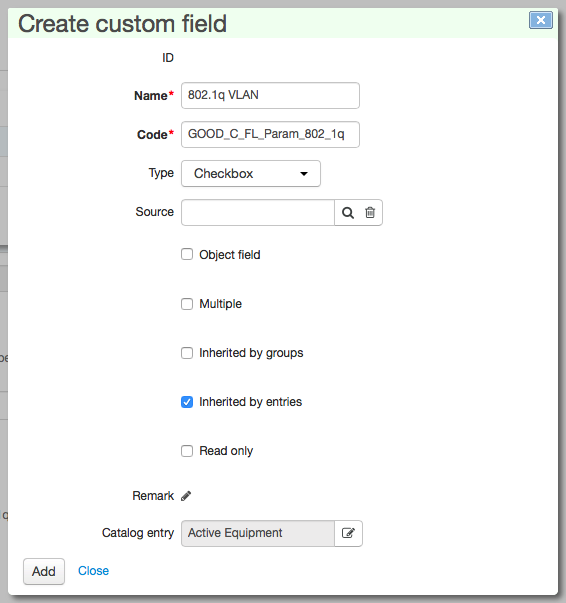
In the Add custom field window that appears, enter:
-
Name — the name shown on the page of the entry or on the page of an object created on the basis of this entry;
-
Code — the string identifier of the field (short name);
-
Type — the type of the parameter;
-
Source — the reference data with items for a drop-down list;
-
Remark — any comment about the field;
-
Catalog entry — name of the entry you are adding the field to.
Select the necessary check boxes:
-
Object field — if the check box is selected, the field added to the entry is available only on the page of an object, created on the basis of this entry, and not the entry page;
-
Мultiple — allows the field to have multiple values.
For entry groups, two other check boxes may be selected:
-
Inherited by groups — the field is inherited only by subgroups of the current entry group;
-
Inherited by entries — the parameter is inherited only by entries in the current group.
Selecting the Inherited by entries check box means that the field itself is shown only in the Custom fields section on pages of entries included in the current entry group.
Click Add. The added parameter is shown in Custom fields.
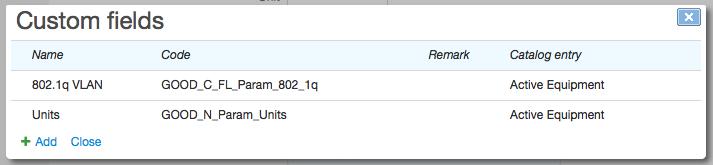
For example, in the Custom fields section of the entries of the Active equipment group, the added parameter looks as follows:
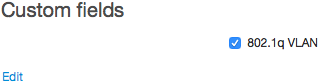
If you want to edit the parameter, click on the corresponding row and make the necessary changes. To delete a parameter, click  at the end of the row. To save all changes made to the table, click Save.
If a field was inherited, a parent entry will be shown in the Catalog entry column and а  sign at the end of the row, meaning that the field can be changed or deleted only on the page of the parent entry.
There are custom fields, marked by at the end of a row, that are not inherited from any entries. They are necessary for the operation of the system and therefore cannot be changed or deleted.
An example of custom fields necessary for the system operation is Traffic direction and the Don't group by price in invoices check box, that appear when detailed services are created, defining the direction of traffic or call:
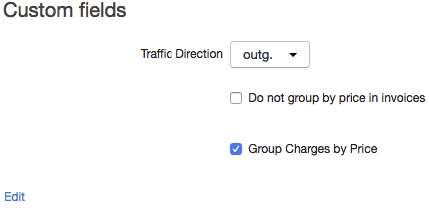
The value in Traffic direction is given by default. For inbound traffic/call in is shown and out for outbound. The symbol "—" is shown for other detailed services which are created manually and do not represent the direction of traffic. For example the Excess service, which is used in a particular service providing scheme.
You should not change the default setting of Traffic direction without consulting Hydra Billing technical support.
If the Don't group by price in invoices check box is selected and the price of the service varies, for example, depending on the use, in the invoice there will be only one row with the final cost of the service. If it is cleared, there will be separate rows for each service price.