Print Templates
On the Administration menu, click Print Templates to see print templates that are used in the system. They are divided into three sections — document templates, subject templates and object ones.
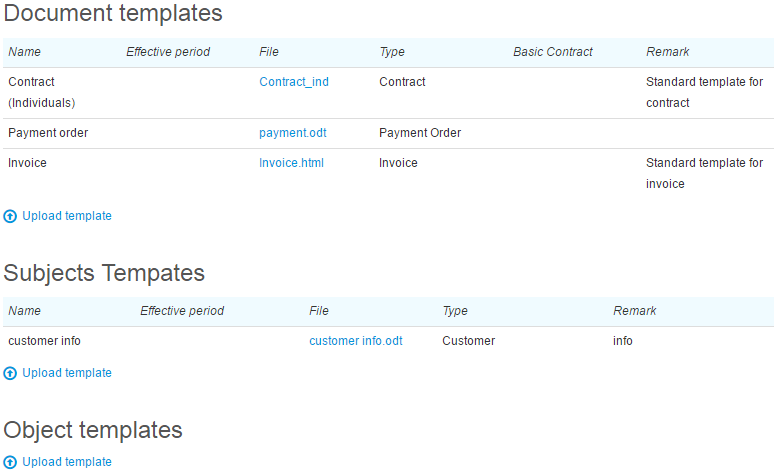
Print templates are files of the .odt, .ods, .html, .txt, .docx, and .xml formats containing simple text and special substitutes written in Liquid. If you need help with creating templates or editing existing ones, please contact our tech support.
Adding and Editing Templates
To add a new template, click Upload template in the corresponding section.
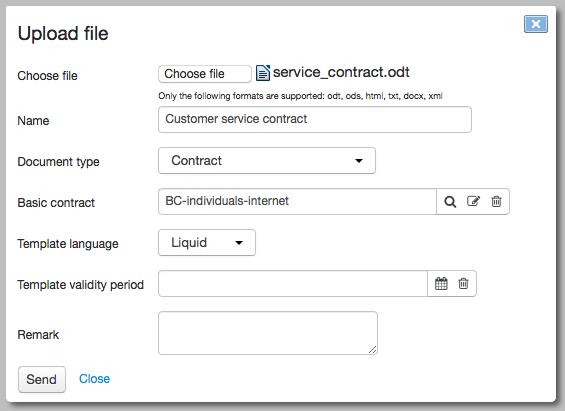
Choose a file with the template, enter a template name and choose a document/subject/object type this template will apply to. When necessary, specify a validity period for the template (if empty, the template will be available at any time).
For a document template you can specify Basic contract, then the template will apply only to documents created on the basis of this specified contract.
For print templates for documents of the Invoice type, you can specify Permission to view. When Customer or operator is entered, and an invoice has a printable form generated on the basis of this template, a customer can save or print the invoice via the Customer Self-Care Portal. If Operator only is chosen a file with an invoice is not available for downloading by a customer.
You can edit a previously added template by clicking the corresponding table row. Add necessary changes and click Save. To delete a template, click Delete. If you choose not to save changes simply close the window.