General
In this section
The General tab is most often used when working with customers. This tab allows you to change the customer code, move to another group, change the status, sign a contract, subscribe to services, and so on.
Both one-off and recurrent services can only be added if the customer has at least one contract and has at least one customer account.
Customer Statuses
-
Active — the basic working status of a customer and the default status when a customer is created. Only with this status, can charge logs be created for a customer. With it, the customer can log in to all applications he or she has access to. When a customer becomes Active, the status of the CPE changes to Active as well.
-
Suspended — customer becomes automatically suspended when non-payment suspension is activated for all customer accounts. The CPE becomes Inactive, but the customer retains access to the Self-Care Portal.
The customer's status is restored to Active if the customer tops up the account with a sum sufficient for issuing a charge log according to the existing subscription, or changes the price plan to a cheaper one.
-
Suspended manually — you can manually set the Suspended manually status. When a customer becomes Suspended manually, the CPE status changes to Inactive, charge logs are not issued, but the access to the Self-Care Portal is still retained. You can suspend a customer only if there are no charge logs in force.
-
Disabled — a Suspended customer automatically becomes Disabled at the end of the billing period of the non-payment suspension service. Customer contracts are terminated, the CPE becomes Inactive, addresses attached to this equipment are released and the customer’s access to all applications is stopped. Disabled customers cannot make payments, however you can make a payment to the account of such a customer.
To return to Active status, the customer must contact the support.
-
Inactive — a status that you can use during initial customer connection to edit the customer’s accounts, contracts, equipment, subscriptions, and so on. No charge logs are issued for inactive customers and they don’t have access to any applications yet. When a customer becomes Inactive, the CPE also becomes Inactive.
Accounts
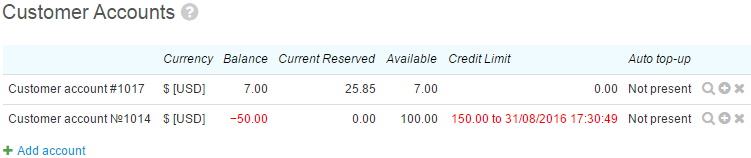
In the Accounts section there is a list of customer accounts, used for providing services, and their indicators. Here you can also see if there is an auto top-up enabled for an account.
Click  in the row to make a payment to this account. To view recommended payment, click
  .
.
See also Customer Accounts.
Contracts
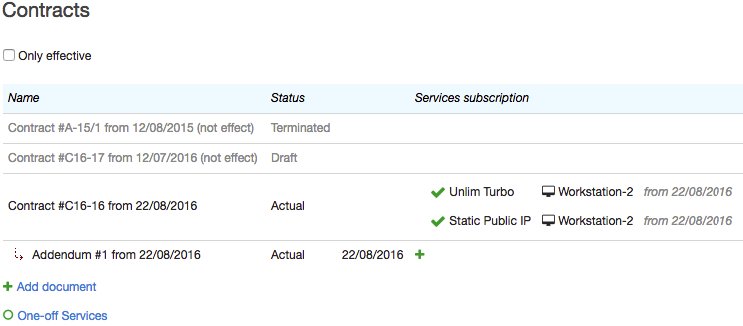
In the Contracts section, all the customer’s contracts are listed. Annexes and addendums are shown with  under the contracts.
If a customer has contracts with any status other than In force, they are hidden by default with the Only in force check box selected. Otherwise, contracts which are not in force, will be shown in gray.
To view information about a contract or to edit it, click its name.
To add a new contract, click  Add document . Then enter the necessary data. See also Contracts.
Subscription to Recurrent Services
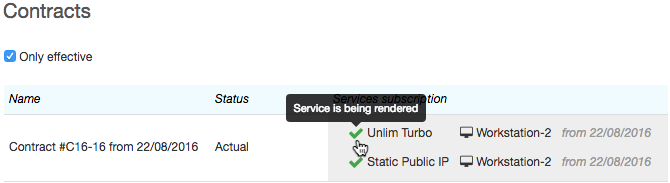
In the Subscriptions to services column of the contracts table, you can see the list of recurrent services which have either already been provided or will be provided to the customer on the basis of the corresponding contract or annex to the contract.
If you want to subscribe a customer to a new service or change an existing subscription, click in the Subscriptions to services column.
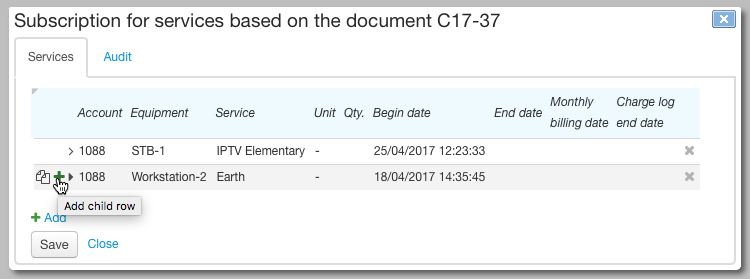
See also Subscription to services.
Status Indicator for Recurrent Services
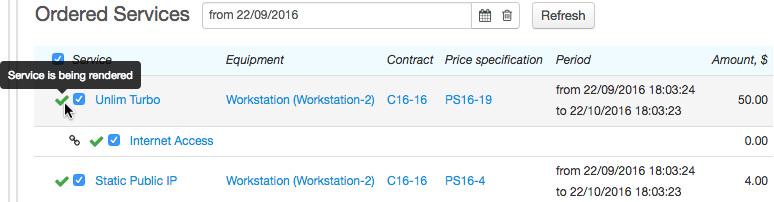
Next to each service, there is an indicator (marker) of its status. You can see the indicator in the following places:
-
in the Subscriptions to services column in the Contracts section on the General tab,
-
in the Ordered services section on the Services tab.
Indicator |
Service status |
|---|---|
|
Service being provided |
|
Service scheduled |
|
|
|
|


One-Off Services
Click  One-off services to choose the one-off service you want to provide to a customer. Specify the customer contract, the account for payment, the CPE (if necessary), and the price plan, if the service is included in it. Click Add and set the parameters.
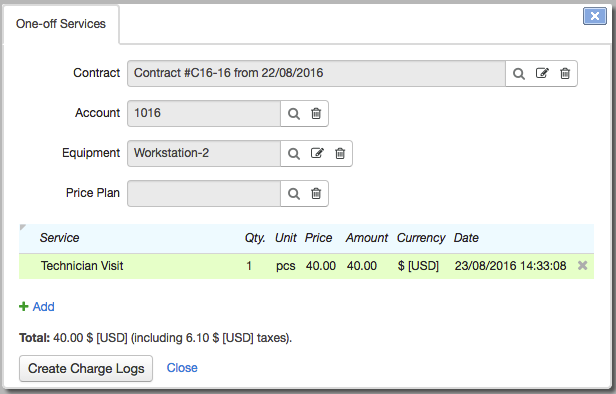
After completing, click Issue charge logs. If the customer is Active and with sufficient funds, charge logs will be issued. If the selected one-off service is included in the valid customer price plan, a record of it will be added to the existing charge log, otherwise a separate charge log will be created for the one-off service.
Customer Equipment
In the Equipment section on the General tab there is a list of the CPE. For example, it could be the customer's personal computer, a network service port or an IP phone.
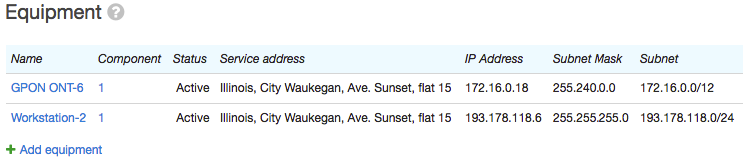
To edit equipment, click its code. In the Component column, all the equipment components owned (or used) by the customer are shown, for example, network adapters or VPN ports. To edit the component, click its code and make the necessary changes.
You can restrict network addresses which can be assigned to the CPE. For example, you can specify, that the CPE IP addresses must be from a specific subnet.
To add new equipment, click Add equipment.
See also Equipment.
Attached Files and Custom Fields
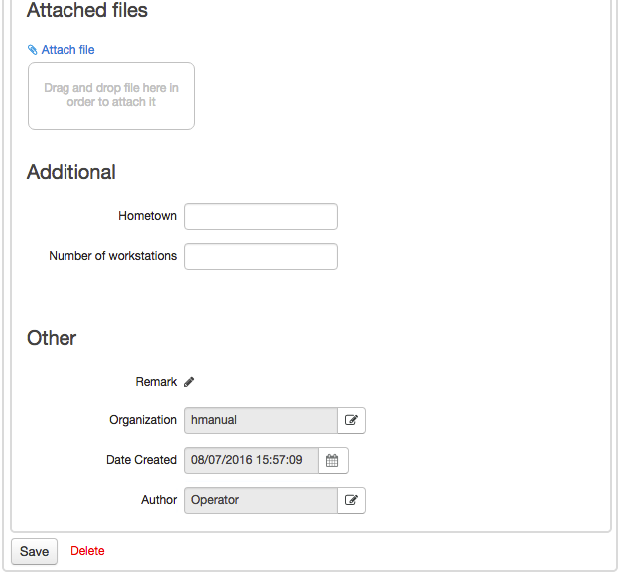
On the General tab, you can attach any file to the customer, enter the data into the custom fields, write a comment, view the customer's division (service provider) and also see who created the customer and when.