Reports on Customers
In this section
Reports on customers are a useful tool to receive a summary on customers, including:
-
trends in new customer connections (the number of customers who have started using services at certain periods),
-
statistics on customer statuses (Active, Suspended, etc.), or
-
customer addresses and groups statistics.
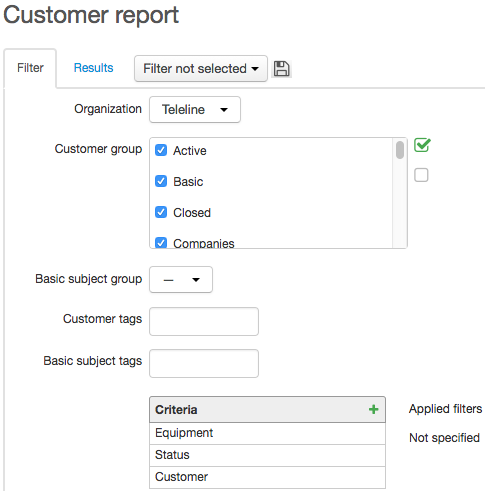
On the Filter tab you can choose an organization, customer groups, groups of basic subjects — individuals or organizations, and customer and basic subject tags.
Recently Connected Customers
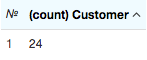
You can view the customers that have used some services for the first time since the start of the month. Choose necessary groups of customers and basic subjects, and add the Customer and Start date of first charge log criteria. Apply the COUNT function to the Customer criterion, then apply the condition for Start date of first charge log to be greater than or equal to the required date and clear the Display check box in its settings.

The report is created with only one value — the number of customers whose first charge logs have been issued over the period starting from August 1.
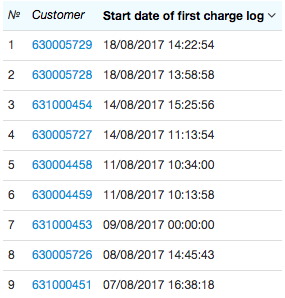
If you disable the COUNT function in the Customer criterion, and select the Display check box in the Start date of first charge log criterion, you can view the list of customers together with their start dates for using the services.
Number of Customers per Group
In order to view statistics on customers belonging to each of the groups you should use both the Customer (apply the COUNT function to it) and Customer group (select the Group check box in its settings) criteria.
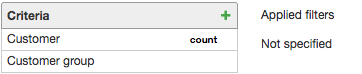
The report is created as:
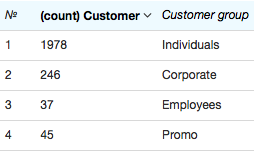
If you clear the Group check box in the Customer group criterion, the report is created with different values:
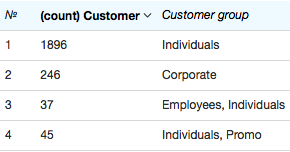
In the first report, you can see that customers belonging to several groups at once have been included in the total number per each of the groups. For example, a customer belonging to both the Individuals and Promo groups at once is added to the number of customers in Individuals and Promo at the same time, so the total number of customers shown in the first report does not match the actual number of customers. In the second report, such customers are shown separately in the corresponding row.
Number of Customers per Address
With the help of a report on customers you can define the number of customers connected at a certain address. Choose necessary groups of customers and basic subjects, and add the following criteria: Customer (apply the COUNT function to it), Status (apply the condition to be equal to Active), Region (apply the condition to be equal to the necessary address, for example, a street), and Number of residential premises, in order to calculate the penetration rate.
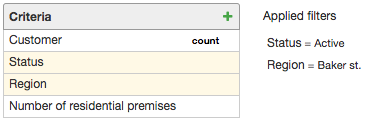
The report is created as:
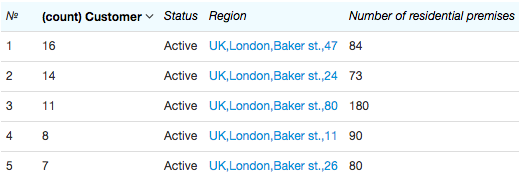
Each row contains the number of active customers per the building in the specified street, and the number of residential premises. To leave the Status column out of the table with total values, clear the Display check box in the corresponding criterion. Likewise, if you clear the Display check box in the Region and Number of residential premises criteria, then there is only one value shown in the report — the number of active customers at the chosen street without specifying by houses.
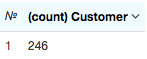
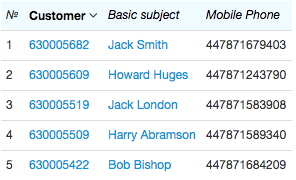
Now let's search for all customers based at a certain entrance of the specified building (for example, in order to inform on the scheduled maintenance works). Add the following criteria to your report: Customer, Status, Region, Entrance, Basic subject, and Mobile phone. Apply the condition for the criteria to be equal to a needed status, a building, and an entrance.
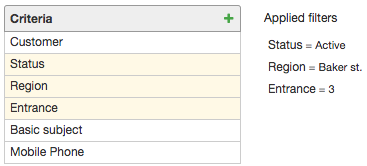
In order to leave the columns with the same values out of the total table you should clear the Display check box for all criteria the filters are applied to (Status, Entrance, Region). The created report contains logins and full names of customers based at the specified entrance of the building, and their mobile phone numbers.
Searching by Customers Statuses and Contracts
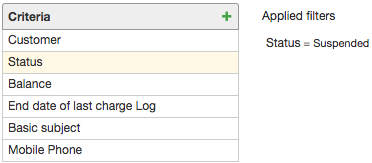
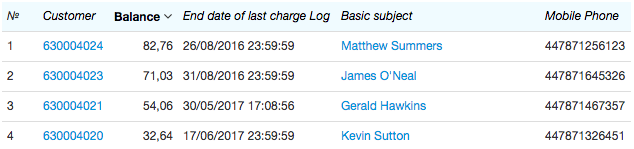
In some situations you need to view all suspended customers, for example, to call them and inquire if they are going to continue using your services. Add the following criteria to your report: Customer, Status (make it equal to the Suspended status and clear the Display check box), Balance, Last charge log end date, Basic subject, and Mobile phone.
The report is created containing details on dates customers stopped using services, and their account balances
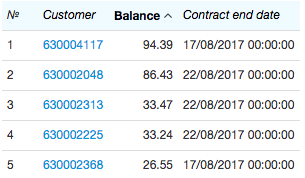
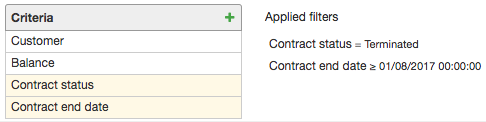
You can search for customers whose contracts have been terminated this month as follows. Use the criteria to create your report: Customer, Balance, Contact status, Contract end date. Apply the condition for the Contact status criterion to be equal to Terminated, and clear the Display check box. The Contract end date criterion should be equal to or greater than the first day of the month.
See the corresponding report created: