Entry and Group Parameters
In this section
You cannot edit some product catalog entries. They are crucial for the system.
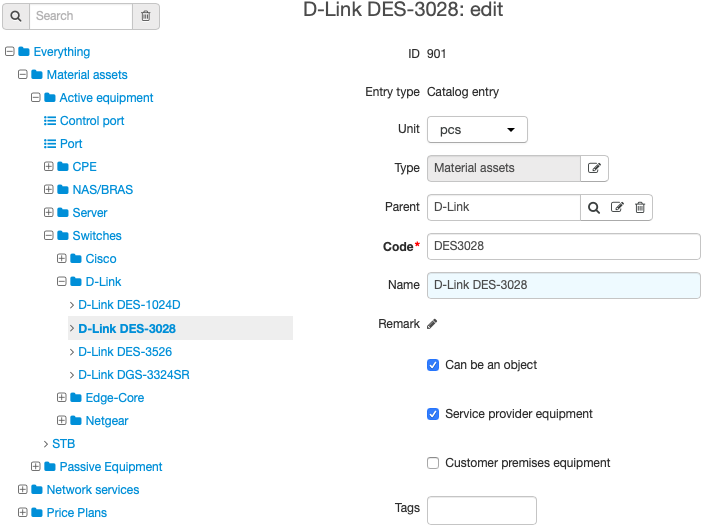
All catalog entries have the following parameters:
-
ID — a numerical ID automatically generated by the system.
-
Entry type — type of product catalog entry (group, product entry, or type of specification items).
-
Unit — a measuring unit, for example, meter for a cable, or pcs for an IP phone.
-
Type — the section of the product catalog the entry relates to.
-
Parent — the group that includes the entry. Unlike Type, Parent can be changed by clicking and choosing another group. The entry will be moved to the entered group.
-
Code — a short name of the entry.
-
Name — a name of the entry. The name can be entered manually or Hydra will copy Code into it when saving the entry. The entry name is shown in the catalog tree, in price specifications and subscriptions to services.
Do not create two or more entries with the same name in order to avoid confusion in price specifications and service subscriptions.
-
Remark — any comment about the entry.
-
Tags — Hydra automatically adds tags to an entry you create if they are set to its parent groups and you are allowed to use them. You can also add other available tags or remove extra ones.
Entries from the Material assets and Network services sections also have the following parameters:
-
Can be an object — if selected, you can create objects on the basis of this entry.
-
Provider equipment — if selected, equipment created on the basis of this entry can be a provider one. For such equipment, profile templates for provider equipment are configured.
-
Customer premises equipment — if selected, equipment created on the basis of this entry can be added to a customer. For such equipment, profile templates for customer equipment are configured.
If selected for an entry in the Material assets and Network services sections, Provider equipment and Customer premises equipment are applied for equipment created on the basis of the entry and components of this equipment. For example, if a switch is a provider equipment, its ports are provider ones too, whereas customer equipment components are used by customers only.
If you are configuring a type of a network service that is to be used with components, you should select both the Provider equipment and Customer premises equipment check boxes. Network service components are always considered to be customer equipment whereas a network service itself — a provider one.
If a network service will have no components, you should select only the Provider equipment check box.
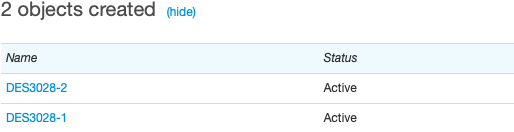
The list of objects created on the basis of the entry (if there are any) is displayed below. Use show/hide to expand or collapse the list. The link in the Name column opens the corresponding object.
Service and Price Plan Parameters
Entries from Price plans and Services have an additional setting which determines how the service is provided to the customer — Service providing scheme
If you choose another service providing scheme, it becomes effective only in a new billing period.
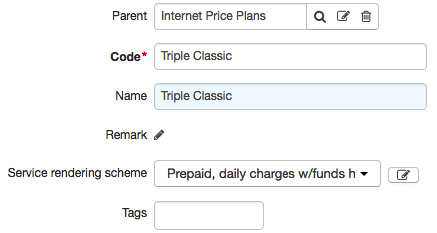
For services specified in Traffic services, you need to choose the scheme in which the Service type is set to Traffic.
For detailed services from the Traffic services group (inbound internet traffic, outgoing local call, and so on), Basic service is specified. It is its parent entry (Internet traffic, Local call, and so on) and it cannot be changed. Detailed services have the same parameters as a basic service which is parent to them.
In the Name for documents section, you can give alternative names to services or price plans, which will be used in certain documents, for example, invoices. Click  Add, choose the document type and enter a new full name (like Name in service settings) and a short name (like Code).
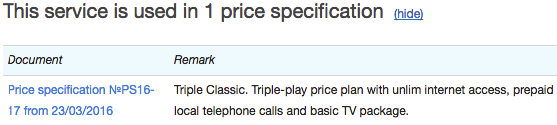
At the end of the entry’s page, for entries from Price plans and Services, there is information about price specification for the corresponding service. Show/hide allows you to expand/collapse the list of price specifications with comments.
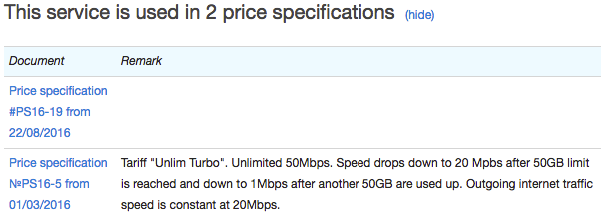
Click the price specification to open its page.
Addresses
If you have the permission to edit the catalog, an additional section Addresses is shown on the page of entry groups, entries and types of specification items from Material assets, Network services, and Realty. You can specify types and purposes of addresses for objects created on the basis of this entry or an entry included in this group, and also set connections between object addresses. Click Edit and make the necessary changes to the address table: for example, you can add IP addresses, subnets, subnet groups, and so on. The types of addresses are given in the Reference data.
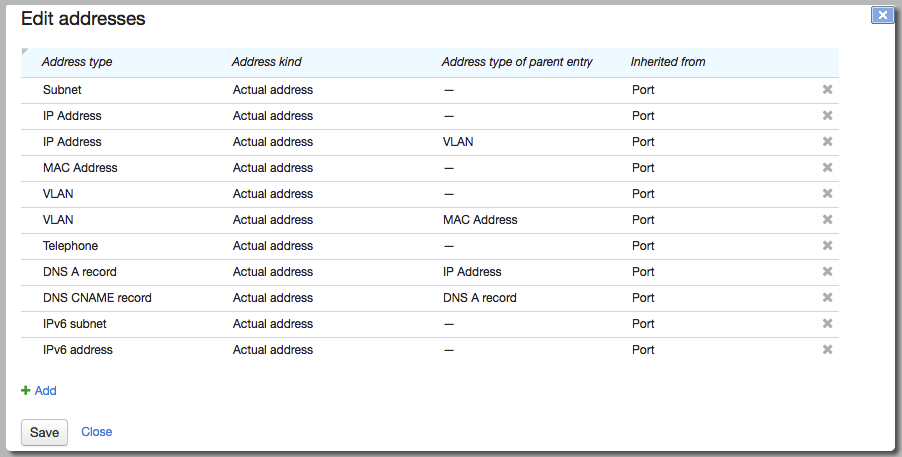
When you add an address for a product catalog entry group, it applies for all sub-entries. In the Inherited from column, entry groups for which you have set up addresses are shown. Go to their pages to edit these addresses. In the example, most of the addresses are inherited from the Network services section, which includes the current IP telephony server entry.
Parent address type is used to specify the relationship between object network addresses. For example, here you see two rows with IP addresses: one is for adding IP addresses and the other for binding them to already existing VLANs.
In order to prevent system failure, avoid making changes to catalog entry addresses without contacting technical support.
Catalog entries can also have custom fields.