Non-Payment Suspension
In this section
Grace Period Before the Non-Payment Suspension
On the Administration menu, click Parameters, then open the Division parameters tab. In Grace period before non-payment suspension, enter a number of days between the end of the last charge log under the contract and the date when the non-payment suspension takes effect.
Setting Up the Non-Payment Suspension in the Product Catalog
Open the suspension service in the product catalog. In Service providing scheme choose a scheme in which Service type is set to Non-payment suspension, for example, a preset scheme. If you want to use a suspension with a different period you may either change it in the preset scheme or copy this scheme and enter a necessary Billing period in the new scheme.
Adding the Non-Payment Suspension to a Price Specification
Add the suspension service in a price specification. Typically, a suspension service belongs to the same specification as regular services.
Under one service or basic contract a non-payment suspension service is to be unique at any time. Periods of price specifications, related to this contract and containing suspension services, should not overlap.
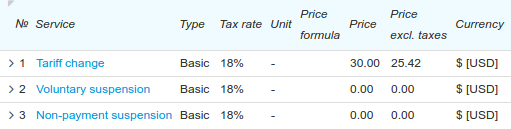
For the suspension service, choose dash in Unit and Rating unit. In most cases, the non-payment suspension is free of charge (Price = 0), but if necessary, you can enter a price for it.
Non-Payment Suspension Activation
Non-payment suspensions are activated by the standard Activating non-payment suspensions task. You cannot activate such a suspension manually.