Creating Invoices
In this section
To create invoices use the menu Bulk Actions → Create Invoices. Typically, invoices are created for both individuals and organizations that have the billing period tied to the beginning of a month. Further, they are checked (depending on the quantity, all or selectively), and put in force.
If during checking you detect mistakes in invoices, depending on the situation you should take necessary measures: correct price specifications, re-rate CDRs, issue backdated charge logs, or perform some other actions so that charge logs would contain correct data on provided services. Then re-create such invoices.
Invoices can be downloaded as printable forms from the invoices registry, or exported to ERP software.
Note that free services are not included into invoices.
Invoices for Provided Services
Archived charge logs are left out when creating invoices.
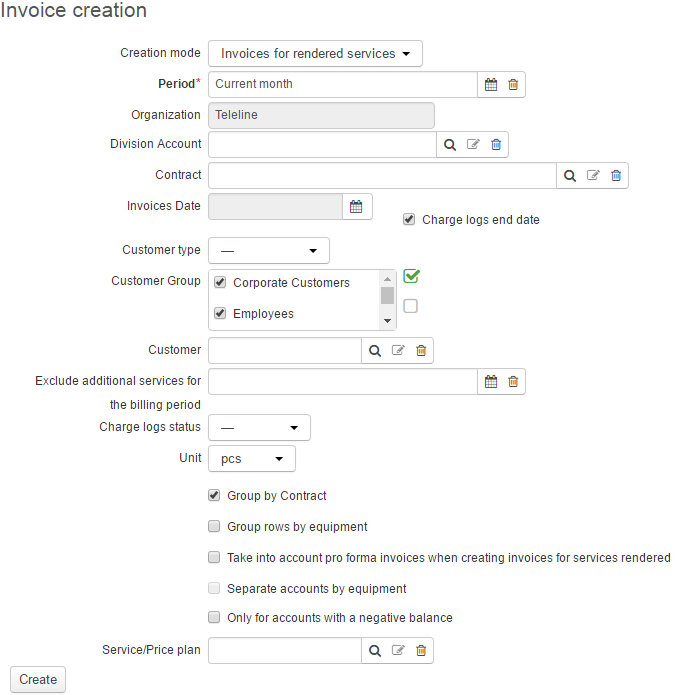
To create invoices for services that have already been provided to customers, choose Invoices for provided services in Creation mode.
-
When creating invoices, use the following parameters:
-
Period — a period for which the invoices are to be issued (invoices are to include services from charge logs with periods that overlap the given period). Usually, the previous month is entered here.
-
Division and Division account — the company that provides services, and its account; the basic subject of the organization, and the specified account would be shown in Provider in the issued invoices. You can leave Division account unfilled.
-
Contract — a service contract or a basic contract on the ground of which services were provided to a customer.
-
Invoices date — the date used for identifying invoices when making payments or other actions (for example, Invoice #6287 of 25.06.2016). If you select Charge logs end date, then the date for invoices is the end date of the latest charge log, for each customer in the chosen period. If you specify some date, then it is used for all created invoices. Usually, the last day of the previous month is specified.
-
Basic subject type — a filter by individuals and organizations. A dash means that invoices are created for both individuals and organizations. It is used in case you need to create invoices for sole traders that are regarded as individuals too.
-
Customer group — customer groups the invoices are to be created for.
-
Customer — a certain customer you want to create an invoice for.
-
Exclude additional services for the period — here you specify the period, for which you need no additional services (those in the contents of price plans) included in the invoice. It is necessary in case the customer fee is paid in the beginning of the period, while additional action fees (for exceeded traffic, etc.) are postponed till the end of the billing period.
-
Charge logs status — statuses of charge logs invoices are based on. If an invoice is created at the end of the billing period, then only executed charge logs should be considered. If invoices are created in the beginning of the billing period, then charge logs in force are to be considered. With «—» here, both in force and executed charge logs are used.
-
Unit — a unit used in invoices for measuring services which settings contain no specific unit. Usually, it refers to price plans that a non-dimensional unit in the product catalog, whereas in invoices they are measured in pieces or months.
-
Separate invoices by contracts — if selected, there is a separate invoice to be created for each service contract. Otherwise, even in case services are provided to a customer according to several contracts, information on all services is collected in one invoice.
-
Only for accounts with negative balance — you can select whether to create invoices only for customers with a negative balance, or not. If a customer has several accounts, the total balance in considered.
-
Separate invoice contents by equipment — if selected, there are separate rows in the created invoice for each piece of customer's equipment.
-
Take into account proforma invoices when creating invoices for provided services — if selected, created invoices contain no rows for services already included in proforma invoices for the same period.
-
Separate invoices by equipment — if selected, separate invoices are created for each used piece of equipment (for example, separate invoices for different phones).
-
Tags — specified tags will be added to all created invoices, so later you can use these tags to search for necessary invoices in the registry.
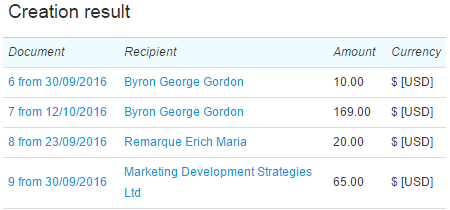
Fill in parameters, click Create and see the result in the Created invoices section.
Adjusting Charge Log Amounts
When charge logs an invoice is based on have been issued according to price specifications with the Based on prices incl. taxes price calculation method, the total cost of a service calculated according to charge logs may differ from the service cost in the invoice. Then Hydra Billing automatically corrects amounts in one of the charge logs.
For example, over the last month a customer was provided with the Office Broadband internet service at four different pieces of equipment. Thus, there are four charge logs issued for the customer, with the same service cost in each of them. And the price specification contains the 13 % tax rate, the Based on prices excl. taxes price calculation method and the Rounding to 2 decimals rule.

The total amount of the charge log is calculated as the amount excluding taxes, added the amount of taxes. The amount of taxes equals $99.90*0.13 = $12.99, therefore the amount including taxes equals $99,90 + $12,99 = $112.89.
When creating an invoice, the total amount excluding taxes is calculated as: $99.904 = $399.6. Then the tax amount is calculated at the specified rate, as $399.60,13 = $51.95. Thus, the amount including taxes equals $399.6+$51.95 = $451.55.
As a result, the invoice looks like this:
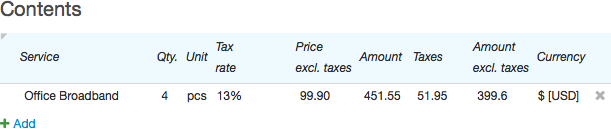
However, if you add up the amounts including taxes as per charge logs, the result equals $112.89*4 = $451.56. Thus, the total service cost according to charge logs differs from the total amount as per invoice by 1¢. I.e. the customer is to pay 1¢ less than the amount charged off his or her account. The customer account balance may become negative, and the customer would have no access to services. In order to avoid such situations, one of the charge logs is corrected by 1¢ so that the charged amount equals the amount as per the invoice.
Proforma Invoices
To create proforma invoices, choose Proforma invoices in Creation mode.
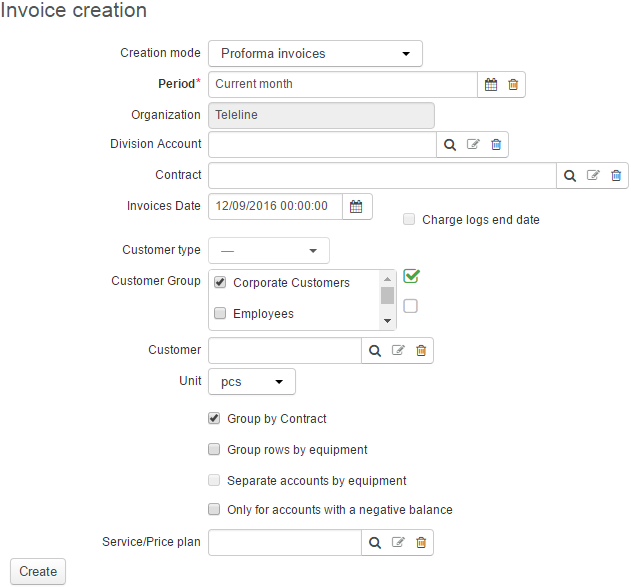
Parameters used for creating proforma invoices are similar to those used for creating invoices for provided services. The main difference is that the period of creation is not the past billing period, but the next one, with services specified as per customer subscriptions, not per charge logs.
Re-creating Invoices
In the process of invoice creation, Hydra Billing checks if there have already been any issued invoices for services or goods over the specified period. If so, then new invoices for the same services and goods are not created.
If after creating invoices you find out that due to incorrect data some products or services are missing or added by mistake, you firstly should correct the charge logs, and then use any of the two methods of correcting invoices:
-
If the created invoice is incomplete, i.e. some products and services are missing, then you should first change the charge logs. After that, re-create invoices with the same parameters as used before. Now a new invoice is created containing the previously missing services.
-
Find the previously created invoice in the invoice registry and delete (if it is a draft), or cancel it. Then create a new invoice to replace the previous one.