Creating Active Equipment
To create user equipment use a customer's page.
To add active equipment, click  next to Active Equipment on the Equipment menu, or
  Add in the registry of active equipment.
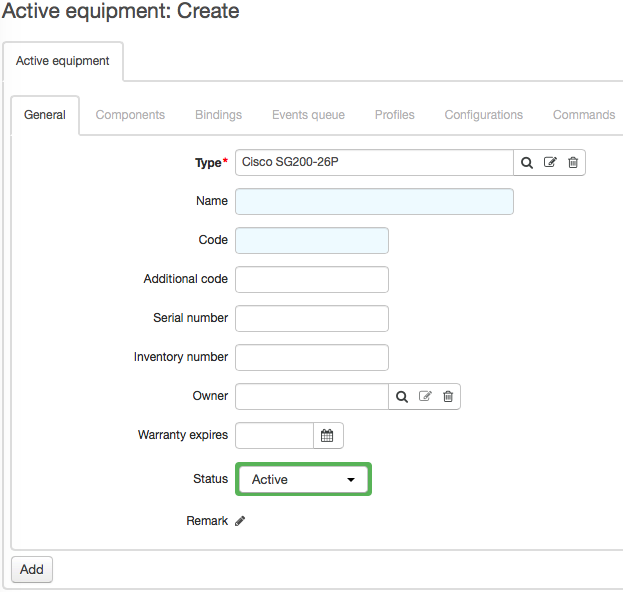
Choose Type of equipment to be created — an entry from the Active equipment group of the product catalog. You can create and set up entries at your own discretion. Typically, those are types of switches, routers, IP phones, and other provider equipment used for providing services to customers. In the example, see how to create a switch of the Cisco SG200-26P type.
Name and Code can be typed manually or filled in using autonumbering. By default, the code of the object type with added consecutive number is used as an object code. An object name consists of the name of the object type and the object code. Thus, in the example, Cisco SG200-26P-1 will be entered in Code and Cisco SG200-26P (Cisco SG200-26P-1) — in Name.
When necessary, type Additional code, Serial number, and Inventory number. Also, you can enter a warranty deadline in Warranty expires.
In Owner enter the current equipment owner (a subject code). When equipment is created to be rented in the future, there is no need to specify any owner right off. When creating provider equipment leave Owner empty as it belongs to the division.
Note that only when Owner is specified the details on the equipment are shown on the corresponding subject's page.
Equipment can have the following statuses:
-
Active — any equipment used in the system.
-
Inactive — equipment is assigned this status when a customer is stopped being provided services and becomes Suspended.
-
Deregistered — a status similar to Inactive. It is applied when equipment will not be further used in the system.
Click Add to create equipment.