Editing an Invoice
In the invoice registry, you can view and edit previously issued invoices.
As invoices are created on the ground of charge logs and subscriptions to services, it is highly inadvisable to edit them manually. If you detect any inaccuracies, you should recreate invoices.
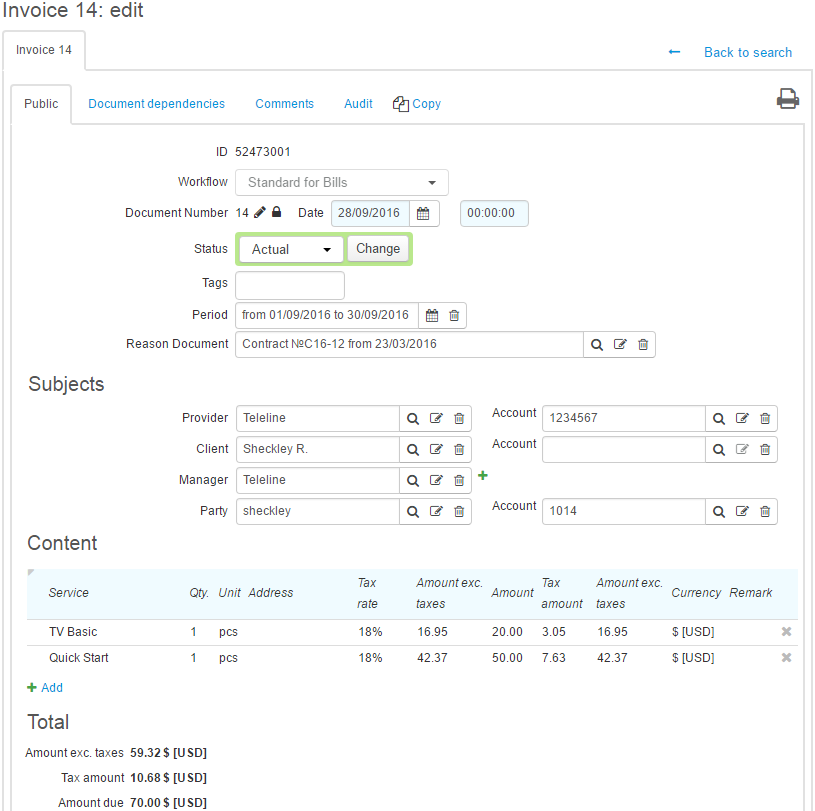
An invoice has the following parameters:
-
Workflow — invoices for provided services are created with the Standard for invoices workflow, and proforma invoices — with the Standard for proforma invoices one.
-
Document number and Date — the number of the document (typically, it is created via autonumbering), and the date which has been used in Invoices date when creating invoices.
-
Status — the invoice status; it is typically used for putting the invoice in force.
If you need to put several invoices in force at the same time, use bulk change of statuses.
-
Period — the period for which the invoice has been created (it is filled with the same value as the one used in Period when creating invoices).
-
Reason document — the contract, on the ground of which services have been provided to the customer. It is filled in if the Separate by contracts check box is selected when creating invoices, or if services are provided in terms of only one contract.
The subjects in the invoice are:
-
Provider — the division that provides services, and its account (they are filled in as per Division and Division account when creating invoices).
-
Client — an individual or an organization the services have been provided to, with the account (typically, it is unfilled).
-
Manager — the operator of the Service Provider Console that has issued the invoice.
-
Participant — the customer services are provided to; the customer account is filled in in case all services are charged to one and the same customer account.
The Contents table shows a list of services included in the invoice.
You can create a printable form for the invoice by clicking  Print, choosing a suitable template and selecting the Attach printable form check box. Thus, the created file is shown in the Generated printable forms section. If in the template settings, in Viewing permission, the value By customer and operator is chosen, then the created form is available for downloading in the Customer Self-Care Portal.